Quick answer
Turn on and charge the accessory, put it into its documented pairing mode, then open Bluetooth settings on your iPhone, Android phone or Windows PC and choose its name. Confirm the code if one appears, select the device for audio or calls, and test it. If pairing fails, move the accessory away from other connections, restart both devices, forget the old entry and pair again.
Bluetooth setup is simple when you separate three jobs: make the accessory discoverable, pair it with the device that will control it, and then select what the connection should do. Pairing headphones is not quite the same as pairing a keyboard, car or printer, so the accessory’s manual matters.
This guide covers common Bluetooth setup on iPhone, Android and Windows. Menu names vary by operating-system version and manufacturer. The printer setup guide is a better starting point if your goal is a printer with model-specific network or driver requirements.
1. Identify the accessory and check its power
Write down the exact model before you start. Look for its power switch, Bluetooth or pairing button, charging port and status light. Charge rechargeable devices or install the correct batteries. A device with too little power may turn on without staying discoverable.
Read the manufacturer’s pairing instructions, especially for headphones, car systems and keyboards. Microsoft notes that the way an accessory becomes discoverable depends on the device, so do not assume one button sequence works for every model.
2. Prepare the accessory for a fresh pairing
Turn on the accessory and put it into pairing or discoverable mode. Look for a blinking indicator, a spoken prompt or a name that is ready to appear in the available-device list. Keep the accessory close to the phone or computer while you pair it.
If the accessory is already connected to another phone, tablet, laptop or car, disconnect it there or follow its instructions for starting a new pairing. Some devices automatically reconnect to the last source and disappear before your new device can select them. For a car, remove old phones from the car’s saved-device list when the manual says to do so.
3. Turn on Bluetooth on the controlling device
Use the settings for the device that will control the accessory:
- iPhone or iPad: Open Settings > Bluetooth and turn Bluetooth on. Apple says the accessory should appear under the available or device list when it is discoverable.
- Android: Swipe down from the top, touch and hold Bluetooth, then use Pair new device. Android’s setup instructions note that some phones instead show an Available devices list or a Refresh command.
- Windows 11: Open Start > Settings > Bluetooth & devices and make sure Bluetooth is on. You can also use the Bluetooth tile in quick settings. On Windows 10, the path is Start > Settings > Devices > Bluetooth & other devices, as described in Microsoft’s pairing guide.
If Airplane Mode is on, turn it off or follow the operating system’s instructions for enabling Bluetooth separately. A missing switch may indicate disabled hardware or a driver issue.
4. Pair the accessory with an iPhone or iPad
Apple’s current Bluetooth accessory instructions use this sequence:
- Open Settings > Bluetooth and turn Bluetooth on.
- Put the accessory into discoverable mode.
- Under the available devices, tap the accessory’s name.
- Enter a PIN or passcode only if the accessory’s instructions require one.
Wait for the name to move into the connected or paired list. For headphones or speakers, play a short piece of audio and check the output selector if sound continues through the iPhone’s speaker. For a keyboard, type into a blank note rather than a message so a test keystroke cannot be sent accidentally.
If the name does not appear, keep the Bluetooth settings page open, move the accessory closer and repeat its pairing-mode sequence. Turning Bluetooth off and on is reasonable, but it does not replace putting the accessory into discoverable mode.
5. Pair it with an Android phone or tablet
On Android, open Settings, touch and hold Bluetooth, choose Pair new device and tap the accessory’s name. Follow the on-screen instructions. Android says paired devices remain paired until you choose Forget, and an already paired device can later be selected under Saved devices to connect it again.
Some accessories support Google’s Fast Pair and may show a notification. Treat that as a shortcut, not a separate kind of accessory: if the notification does not appear, use the ordinary Bluetooth settings path.
When Android asks for a passcode, use the code printed in the manual or shown on both screens. Do not approve an unexpected request from an unknown device. Once connected, open the accessory’s settings entry and check the functions you need, such as Media audio for music or Phone audio for calls. Google’s troubleshooting guide documents those separate audio switches.
6. Pair it with a Windows PC
On Windows 11, turn on the accessory and make it discoverable. Select the Network, Sound or Battery icon beside the clock, open the Bluetooth quick-setting menu and choose the accessory under New devices. Follow any additional instructions and select Done.
You can also use Start > Settings > Bluetooth & devices > Add device > Bluetooth. Windows 10 uses Start > Settings > Devices > Bluetooth & other devices > Add Bluetooth or other device > Bluetooth. Microsoft’s Windows pairing guide documents both paths and the optional Swift Pair notification for supported accessories.
After pairing headphones, select them from the Windows sound output menu. If you are adding a Bluetooth keyboard to a larger workstation, the home-office setup guide covers the desk and device arrangement around it; Bluetooth pairing itself still happens in Windows settings.
7. Confirm the code and permissions before accepting
Some pairings show a number on one or both screens. Compare the numbers before selecting Pair, Allow or Confirm. A car may ask for access to contacts or call history; grant only what you actually want the car to use.
A speaker or keyboard normally needs less access than a phone-connected car. If an accessory requests a permission that does not fit its job, stop and check the model’s manual. Pairing is not a reason to accept every prompt automatically.
Remember the distinction between paired and connected. Android describes a device as connected when it is actively in use, while a saved device can remain paired for later. This explains why an accessory can appear in settings but not be the current audio output.
8. Choose the active use and run a small test
A successful pairing is only the first test. Check the function you bought the accessory for:
- Play a short audio clip through headphones or a speaker.
- Type a few harmless characters in a blank document with a keyboard.
- Make a test call only after selecting the Bluetooth phone-audio option.
- Turn the car off and on once to see whether the expected device reconnects.
- Send a small test job if you are connecting a supported printer.
If it says Connected but the result is wrong, inspect the sound output, media-audio or phone-audio setting rather than pairing the same device repeatedly. Also check volume on both ends and pause other paired devices that may have claimed the audio.
9. Keep the connection tidy and private
Give each device a recognizable name if the operating system allows it: Rasmus headphones is easier to identify than a generic model code. Remove old phones, tablets and computers from a shared car or speaker when they no longer need access.
When setup is complete, exit pairing mode. If you lend or sell the accessory, use its documented reset procedure and remove it from your phone or computer’s saved Bluetooth list. Keep the model’s official support page in your notes, not a guessed passcode or an unverified driver download.
10. Fix a failed or unstable pairing
Start with the basics: Bluetooth on, accessory charged and discoverable, devices close together, then turn the accessory and phone or computer off and on. Move the accessory away from other wireless or USB equipment; Microsoft notes that an unshielded USB 3.0 device can sometimes interfere with Bluetooth connections.
If it is still connected to a different source, disconnect that source. Then remove the saved entry—choose Forget on Android, remove the device on Windows, or use Forget This Device on iPhone—and pair again from scratch. If Windows cannot find Bluetooth at all, verify compatibility and update the adapter through Windows or the computer manufacturer’s official support page. Microsoft’s Bluetooth troubleshooting guidance warns that outdated or incompatible drivers are a common cause of problems.
If the accessory fails with several known-good devices, check its manual for a factory reset or contact the manufacturer. A reset may erase every saved pairing, so use it only after the simpler steps.
Bluetooth is most reliable when the accessory is deliberately put into pairing mode, the request is accepted on the intended device and the final function is tested. Once the old entries are cleaned out, reconnecting later should take seconds rather than becoming another mystery in the settings menu.
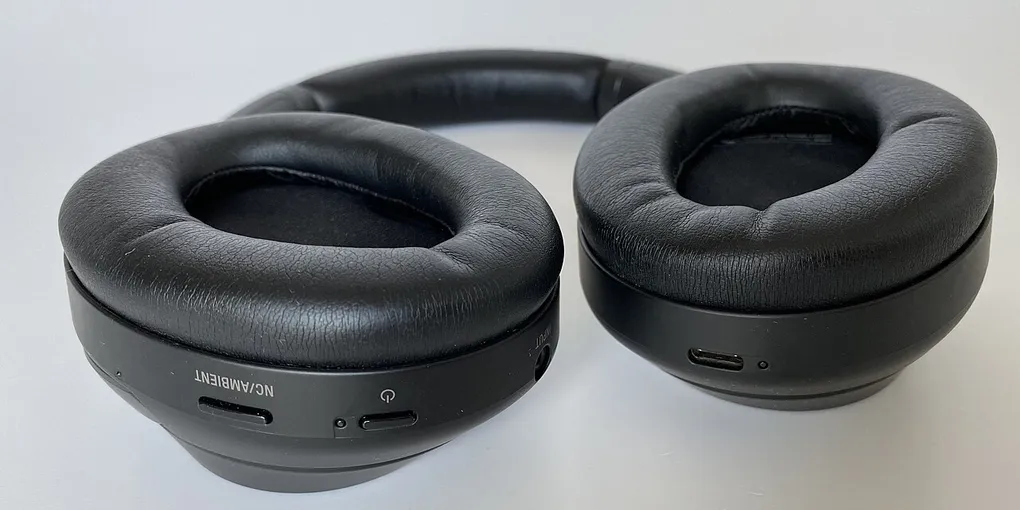
Hero image: www.digitalpush.net, CC BY 4.0, via Wikimedia Commons.
Sources
- Microsoft Support: Pair a Bluetooth device in Windows
- Apple Support: Connect a third-party Bluetooth accessory to your iPhone or iPad
- Android Help: Find and set up Bluetooth devices near your Android device
- Android Help: Fix Bluetooth problems on Android
- Microsoft Support: Fix Bluetooth problems in Windows
Frequently Asked Questions
How do I put a Bluetooth device into pairing mode?
Turn the accessory on and use the pairing or Bluetooth button described in its manual. A blinking light, spoken prompt or a name appearing in the available-device list can indicate that it is discoverable, but the exact method differs by model.
Why is my Bluetooth device not showing up?
Check that Bluetooth is on, the accessory is charged and discoverable, and it is close enough to the phone or computer. If it was paired somewhere else, disconnect or remove that old connection, restart both devices and try the pairing flow again.
What is the difference between pairing and connecting Bluetooth?
Pairing saves the relationship between the two devices. Connecting is the active session you use now. A device can remain paired but be disconnected, and many accessories reconnect automatically when they are on and in range.
Why does Bluetooth say connected but I hear no sound?
Choose the Bluetooth accessory as the active output in the phone or computer's sound controls, and check that media audio is enabled for the accessory. Also pause audio on other paired devices and check both volume controls.