Quick answer
Before recycling electronics, decide whether the device can be reused, back up anything you need, sign out of accounts, remove SIM and memory cards, and use the manufacturer's reset or sanitization instructions. Remove or separately route batteries when required, never put lithium-ion batteries or devices containing them in household trash or curbside recycling, and confirm the local recycler accepts your exact item.
Recycling an old phone, laptop, printer or router is not just a matter of putting it beside the paper bin. There are two jobs: protect the information on the device and send the hardware to a route that can actually accept it. The right destination depends on the item, its battery, its condition and the rules in your area.
The U.S. EPA’s electronics donation and recycling guidance recommends considering reuse or donation, deleting personal information, removing batteries when appropriate and checking what local programs accept. Use this ten-step process for a household clear-out, then confirm the final instructions with the recycler before you travel.
1. Decide whether to reuse, donate or recycle
Do not start by throwing every old device into one box. Make three groups:
- Keep: a device you still use or want as a backup
- Reuse or donate: a working device that can serve someone else
- Recycle or repair: broken, obsolete or uneconomical hardware
A working laptop may need only a battery, storage upgrade or clean operating-system install. A phone with a cracked screen may still be useful to a repair program, but describe the damage accurately. Donation is not a way to pass an unsafe battery or a locked device to someone else.
2. Make an inventory before unplugging anything
Write down the device type, brand, model, serial number and condition. Photograph the labels if you may need a warranty, trade-in estimate or proof of what a recycler received. Include accessories such as docks, chargers, external drives, memory cards, routers, game consoles and printers.
Look for batteries that are removable, built in, swollen, leaking or damaged. Do not press, puncture or open a battery to identify it. If a device is hot, smoking, visibly swollen or leaking, move people away and follow the manufacturer’s and local hazardous-waste instructions rather than putting it in a collection box.
Call or check the recycler’s current list before packing. “Electronics” can mean different things to a retailer, municipal facility and certified recycler: one may accept laptops but not televisions, loose batteries or large appliances.
3. Back up the data you want to keep
Copy photos, documents, contacts, authenticator information and browser data before you reset anything. Use a second location, such as an external drive or cloud account, and open a few files from the backup. The backup guide explains how to make a copy and verify that it is usable rather than merely assuming a sync finished.
For a phone, check that photos, messages, contacts and files have finished syncing. If you use an authenticator app, banking app or password manager, confirm that you can sign in on the replacement device before erasing the old one. Your two-factor authentication setup checklist is useful if a device is one of your sign-in methods.
4. Sign out and remove the device from accounts
Sign out of email, cloud storage, browsers, messaging, shopping, streaming and work accounts. Turn off device-finding and activation locks, and remove the device from account dashboards where the service provides that option. This prevents the next owner or recycler from receiving a device that is still linked to you.
The FTC’s phone-disposal guidance also warns that you may need to update services that use your phone number and reactivate an authenticator app on your replacement phone. Check your password manager, banking alerts and recovery-number settings before you hand the device over.
For Apple devices, follow Apple’s current before-you-sell or recycle checklist, including signing out and using Erase All Content and Settings. For a Pixel trade-in, Google instructs users to remove device security and factory-reset the device; its trade-in instructions also cover removing device protection.
5. Remove SIM cards, memory cards and removable drives
Take out the SIM card before recycling or donating a phone. Remove microSD cards, USB drives and any external storage that you intend to keep. A card can contain photos, documents, saved credentials or other personal information even after the main device has been reset.
The FTC specifically includes SIM and SD-card removal in its phone-disposal steps. Put cards you are keeping in a labelled envelope, then check the replacement device before deciding what to do with cards you no longer need. Do not send a memory card to a recycler unless you have sanitized it or are certain it contains nothing you need.
6. Reset phones and tablets using the manufacturer’s method
After checking the backup and account sign-outs, use the device’s built-in erase process. Do not simply delete photos, uninstall apps or move files to the trash. CISA’s proper-disposal guidance says deletion methods vary by device and that ordinary deletion or emptying a trash or recycle bin may leave files recoverable.
On an iPhone or iPad, use the Apple Account and Erase All Content and Settings path documented by Apple. On a Pixel, use the factory-reset path in Google’s trade-in instructions. Other Android makers may use different menu names, so use the support page for the exact model rather than a random video.
When the erase is complete, stop at the welcome or setup screen. Do not sign back in to “check” the device with your old account. You can verify that your account dashboard no longer lists it and that the phone no longer appears in your device-finding service.
7. Treat computers and storage media according to their risk
A factory reset or operating-system reinstall is not a universal answer for every computer. The correct method depends on the operating system, storage type, encryption, the device’s sensitivity and what the receiving organization promises to do.
NIST SP 800-88 Rev. 2 describes media sanitization as making access to data infeasible for a given level of effort and sets out methods including clear, purge and destroy. You do not need to run an enterprise program for a household laptop, but the principle matters: choose a method that matches the information and device instead of assuming that file deletion is enough.
For ordinary personal use, follow the manufacturer’s secure-erase or reset documentation, remove any removable drive you are keeping, and confirm that the computer no longer starts in your account. For tax records, client files, medical information or other sensitive material, use a reputable recycler that can explain its data-sanitization process and provide written confirmation where appropriate. Never drill, smash or burn a device that contains a lithium-ion battery.
8. Separate lithium-ion batteries from normal waste
Many phones, tablets, laptops, cameras, power banks, earbuds and cordless tools contain lithium-ion batteries. The EPA’s lithium-ion battery guidance says these batteries and devices containing them should not go in household garbage or municipal recycling bins because they can start fires during transport, at landfills or at recycling facilities.
Use a battery collection point, household hazardous-waste program or electronics recycler that explicitly accepts the item. Follow its packing instructions. The EPA recommends placing each battery or device in a separate plastic bag and covering battery terminals with non-conductive tape to help prevent contact; do not tape over a swollen or damaged battery if doing so would require pressing or handling it unsafely.
Do not put loose batteries in a box with metal tools, keys or other batteries. If a battery is damaged, swollen, hot or leaking, stop and contact the manufacturer, local hazardous-waste service or emergency service for the appropriate route.
9. Choose and confirm the drop-off route
Start with your municipal waste authority, the device manufacturer, the retailer’s take-back program or an electronics recycler. Ask five specific questions:
- Do you accept this exact model and condition?
- Does the device’s built-in or loose battery need a separate route?
- Do you accept cables, chargers, monitors and accessories too?
- Do you charge a fee or require an appointment?
- How is personal data handled, and can you provide a receipt or sanitization record?
Rules differ by country, state, municipality and product type. The EPA maintains general information and links to recycling options, but a local program’s current acceptance list controls your trip.
10. Pack it safely and close the loop
Power devices down, separate screens from heavy objects, protect ports and place small parts in labelled bags. Keep batteries and devices from moving around and contacting metal. Use the recycler’s instructions for damaged items instead of improvising packaging.
At drop-off, keep the receipt, confirmation email or tracking number. For a trade-in, retain shipment proof until the transaction is complete.
Finally, check your account security page, cloud-device list and phone-number settings one more time. Remove the old device from trusted-device lists and notification destinations. Recycling is complete when the hardware has a responsible destination and the data, accounts and batteries have been dealt with separately.
A good electronics clear-out is deliberately boring: back up first, erase using the right method, separate batteries and confirm the local route. That preparation protects your digital life while giving usable hardware a chance to be reused or recycled.
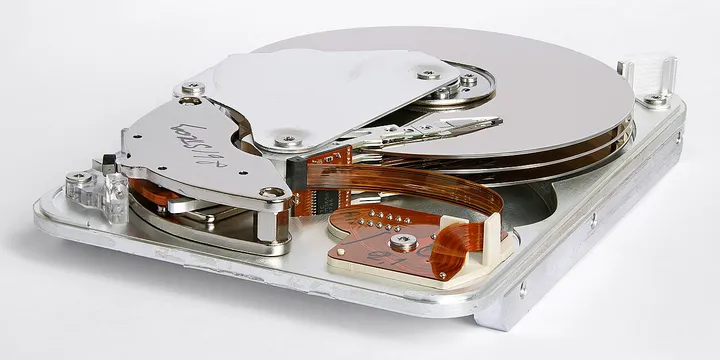
Hero image: Syced, CC0, via Wikimedia Commons.
Sources
- U.S. EPA: Electronics Donation and Recycling
- CISA: Proper Disposal of Electronic Devices
- Federal Trade Commission: How To Remove Your Personal Information Before You Get Rid of Your Phone
- Apple Support: What to do before you sell, give away, or trade in your iPhone or iPad
- Google Store Help: Ship your trade-in device
- NIST: SP 800-88 Rev. 2, Guidelines for Media Sanitization
- U.S. EPA: Used Lithium-Ion Batteries
Frequently Asked Questions
Can I put old electronics in the recycling bin?
Do not assume that curbside recycling accepts electronics. Check your waste authority or a local electronics recycler for the exact device, and keep lithium-ion batteries and devices containing them out of household trash and municipal recycling bins.
How do I wipe a device before recycling it?
Back up what you need, sign out of accounts, remove SIM and memory cards, and follow the manufacturer's reset or erase instructions. A phone can usually be restored to factory settings through its settings; for a computer, removable drive or sensitive data, use the applicable sanitization method or a recycler that can document it.
Should I donate a working computer or phone instead of recycling it?
Often, yes. Reuse or donation can keep a working device in service, but erase your data first, remove accounts and locks, disclose faults honestly, and confirm that the receiving organization accepts that model and condition.
What should I do with an old laptop battery?
Treat a lithium-ion battery or a device containing one as a separate recycling or household-hazardous-waste item unless your local program gives different written instructions. Do not put it in household trash or a curbside recycling bin; tape exposed terminals or bag the battery separately as the EPA directs.