Quick answer
Choose a laptop by starting with the apps and tasks you actually use, then compare the exact processor, RAM, storage, screen, battery and ports. For most work and study, 16 GB of RAM and a 512 GB SSD are comfortable targets; check software compatibility, support life and the return policy before paying.
A laptop is not good because its product page contains the biggest number. It is good when it runs your actual apps, feels comfortable to carry and still has enough headroom after a year of updates, photos and open browser tabs.
Use this ten-step process before you compare brands. It works for a first laptop, a school computer, a home-office machine or a replacement for an aging notebook. The key is to decide what matters before a glossy screen or a discount decides for you.
1. Write down your real workload
List the five things you will do most often. “Work” is too vague; “twenty browser tabs, video calls, spreadsheets and photo edits” is useful. Add the heaviest task you might do once a week, because that task can change the processor, memory and graphics you need.
| Your regular work | Sensible starting point |
|---|---|
| Email, documents and streaming | 8 GB RAM, 256 GB SSD, efficient processor |
| Study, office work and multitasking | 16 GB RAM, 512 GB SSD, modern mid-range processor |
| Coding, design and large projects | 16–32 GB RAM, 512 GB–1 TB SSD, stronger cooling |
| 3D, serious video or modern games | Dedicated graphics, 32 GB RAM if supported, larger SSD |
These are buying targets, not laws. A well-supported 8 GB Chromebook can feel better than a badly configured 16 GB laptop. Your apps and operating system decide the final choice.
2. Choose the operating system before the hardware
Windows is usually the safest choice when you need specialist business software, a broad selection of peripherals or PC games. Read Microsoft’s Windows 11 specifications, but treat the listed requirements as a compatibility floor, not a comfortable buying target. Microsoft notes that some apps need more than the minimum.
macOS is a natural fit if you already use an iPhone, iCloud and Mac-specific software. Check the exact model’s ports, memory and display rather than assuming every MacBook configuration is identical; Apple’s MacBook Air specifications show how much detail can vary by configuration.
ChromeOS is excellent for browser-first work, Google Workspace, simple school tasks and people who want low-maintenance updates. Before buying new or used, look up the model’s Auto Update Expiration date in Google’s ChromeOS update policy. A cheap Chromebook with little support left is not a bargain.
Linux can be a good choice for a technical user, but check Wi-Fi, sleep, fingerprint-reader and specialist-app compatibility for the exact model. Do not buy an operating system and hope your required program will somehow fit afterward.
3. Compare the processor by generation and class
Ignore a processor name in isolation. Compare the generation, performance class, number of cores, efficiency and the laptop’s cooling design. A newer low-power chip may be the better everyday machine, while a high-performance chip can be faster but heavier, louder and less efficient.
For documents and web apps, a current entry-level processor is usually enough. For compiling code, editing photos or exporting video, step up to a current mid-range or performance chip. Read reviews of the exact laptop, not just the processor: two models with the same chip can behave differently when one has better cooling.
4. Make RAM a deliberate decision
RAM is the desk space your apps share. When it fills, the laptop leans more heavily on storage and feels slow while switching tasks. Eight gigabytes is workable for basic browsing and documents, but 16 GB is the safer target for work, study and multitasking now.
Choose 32 GB when large creative files, virtual machines, local AI tools or development containers are normal parts of your week. Check whether the RAM is soldered, replaceable or available only in a particular configuration. A laptop that cannot be upgraded deserves more memory at purchase.
5. Buy enough SSD storage, not a bargain-sized drive
A 256 GB SSD can work for a browser-first user who keeps files online, but the operating system, applications, cached files and updates consume space before your own photos arrive. For most people, 512 GB is a comfortable middle ground. Choose 1 TB or more for games, video, RAW photos or several development environments.
An SSD is preferable to an old mechanical hard drive for a laptop because it is quieter, faster and more resistant to movement. Still, storage is not backup. Use the computer backup routine before a drive failure turns a hardware purchase into a data-loss event.
6. Pick the screen for your eyes and your bag
A 13- or 14-inch laptop is easier to carry. A 15- or 16-inch model gives spreadsheets, timelines and split windows more room but takes up more space. If you travel frequently, weigh the charger as well as the laptop.
For general work, a sharp 1080p-class display is a reasonable minimum. A taller 16:10 aspect ratio can be more comfortable for documents than a short widescreen panel. Pay attention to brightness, reflections, scaling and viewing angles, not just diagonal size. If you work at a desk, a good monitor can matter more than paying for an ultra-high-resolution laptop panel.
7. Check battery claims and charging
Battery life is a test result, not a permanent promise. Screen brightness, video calls, browser tabs, cellular radios and performance modes can change the result dramatically. Look for independent testing of the exact model and ask whether the battery is user-replaceable or serviceable.
Confirm that the included charger has enough power for the laptop. USB-C charging can make a travel setup simpler, but ports are not automatically interchangeable: check whether a USB-C port supports charging, display output, fast data or only some of those functions. A well-planned home-office setup can expose missing ports before you buy.
8. Inspect the keyboard, camera and ports
You will touch the keyboard every day. Look for a comfortable layout, useful key travel, a precise trackpad and a webcam that suits your calls. Read reviews for fan noise and heat around the palm rest; these affect daily comfort more than a benchmark score.
Make a port list from your real accessories: monitor, headphones, camera cards, USB drives, Ethernet, projector or printer. Adapters are fine when you expect them, but an adapter-heavy laptop can be frustrating in class or at an airport. Check the position of the charging port too, especially if you use a mouse.
9. Consider repairability, support and energy use
A laptop is a longer-lasting purchase when its battery, SSD, keyboard or other parts can be serviced. Search the exact model’s repair manual, parts availability and warranty terms. A thin sealed design may be beautiful but expensive to repair after a battery has worn out.
Check the manufacturer’s security-update and operating-system support policy. For energy-conscious buying, the ENERGY STAR computer finder lets you filter certified computers by form factor and other attributes. Efficiency can reduce heat, fan noise and electricity use, although it should not override software compatibility.
10. Compare the exact configuration and protect the purchase
Write the complete specification in one line: model, processor, RAM, SSD, screen, operating system, keyboard layout, charger and warranty. Retailers sometimes use the same family name for machines with very different memory, displays and storage.
Then check the return window, dead-pixel policy, battery warranty, keyboard language, included charger and whether the price includes tax or delivery. For refurbished machines, record the serial number and test every port, key, speaker, camera and sleep/wake function immediately.
Do not let a small discount push you below the requirement you wrote in step one. A laptop that costs a little more but avoids an immediate memory upgrade, dongle purchase or software workaround can be the cheaper computer over its useful life.
The short version
Choose the operating system and apps first, then target 16 GB of RAM and 512 GB of SSD storage for a comfortable general-purpose machine. Compare the exact configuration, display, battery, ports, repair options and support period, and buy from a seller with clear return rights. The best laptop is the one that fits your work and continues to fit your life after the unboxing excitement fades.
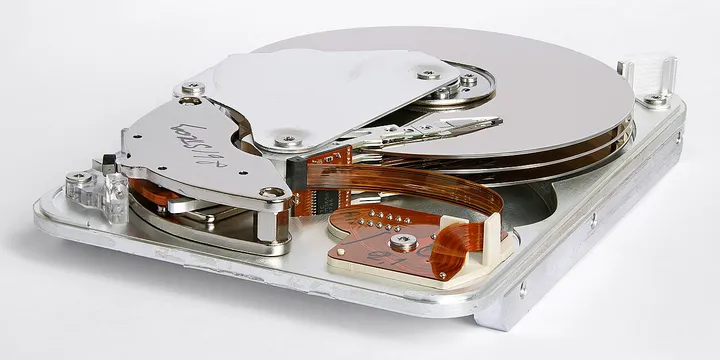
Hero image: freddie marriage fredmarriage, CC0, via Wikimedia Commons.
Sources
Frequently Asked Questions
How much RAM should a laptop have?
Eight gigabytes can handle basic browsing, email and documents, but 16 GB is a more comfortable target for work, study and multitasking in 2026. Choose 32 GB when your regular work includes large photo or video projects, virtual machines or heavy development tools.
Is 256 GB enough laptop storage?
It can be enough for browser-based work and cloud storage, but 512 GB gives most people more breathing room for applications, downloads, photos and updates. Choose 1 TB or more when you keep games, video, large photo libraries or development environments locally.
Should I buy a Windows laptop, MacBook or Chromebook?
Choose the platform that runs your required apps and fits the devices you already use. Windows has broad software and hardware support, macOS fits people invested in Apple's ecosystem, and ChromeOS suits browser-first work; check specialist apps before buying.
What should I check before buying a used laptop?
Check the exact model and support date, battery health, charger, keyboard, ports, screen, storage health and return rights. A used Chromebook must still have a useful ChromeOS Auto Update date, while a Windows laptop must meet the supported operating system's requirements.