Quick answer
Follow the 3-2-1 rule: keep 3 copies of your important files, on 2 different types of storage, with 1 copy stored offsite. Set up an automatic local backup (Time Machine, File History or free backup software), add cloud storage for the offsite copy, and test a restore at least once a month — a backup you never tested is not a backup.
The hard drive that fails is always the one without a backup. Not because hard drives are unreliable — modern drives are decent — but because the data on them is not. A decade of photos, your tax files, finished projects: none of it can be downloaded again.
The good news: a proper backup setup takes about an hour to build, and then it runs itself. Here are the 10 steps that cover all of it.
1. List what you can’t replace
Before buying anything, spend 10 minutes listing what matters.
- Photos and videos (including phone photos — most people’s biggest collection)
- Documents: tax returns, contracts, passport scans
- Work files you still need
- Notes and personal writing — from journals to your own knowledge base
- Passwords and recovery codes (though these also belong in a password manager)
You don’t need to back up software — you can reinstall it. Back up data. If the file is replaceable, it doesn’t count.
2. Understand the 3-2-1 rule
“Backup” is not a copy. It’s a system with one simple rule:
| Copy | Where | Why it matters |
|---|---|---|
| 1 | Your computer | The original — dies with the machine |
| 2 | External drive | Restores you fast, works offline |
| 3 | Cloud / offsite | Survives fire, theft, ransomware |
3 copies. 2 different types of media (e.g. internal SSD + external drive, or external drive + cloud). 1 copy offsite.
Why so strict? Because each copy protects you against a different disaster, and the disasters don’t care about your plans.
Choose the setup by the way you need to recover
The best backup plan is the one you can restore without guessing. Match the layers to the kind of failure you are preparing for:
| If this happens | First recovery copy | What the extra copy must do |
|---|---|---|
| You delete or overwrite one file | Versioned local backup | Keep older versions long enough for you to notice the mistake |
| Your laptop drive dies | External drive | Restore quickly without waiting for a full download |
| The laptop and drive are stolen or damaged together | Cloud or a drive elsewhere | Stay outside the incident’s physical location |
| Ransomware reaches connected storage | Offline or immutable copy | Be unreachable or unchangeable while the computer is compromised |
Then run a small proof test before you call the setup finished. Create a test folder containing one document and one photo, let the local backup run, and confirm that both files appear in its history. Restore them to a new folder rather than overwriting the originals. Finally, disconnect the removable drive and check that your offsite copy still has the latest files. CISA recommends keeping critical backups offline, encrypted, and regularly tested because ransomware can try to delete or encrypt backups that remain accessible. Apple’s Time Machine guidance also illustrates the useful everyday pattern: an appropriately sized external disk, automatic versioned backups, and a documented restore path. If any test fails, fix that layer before adding more storage or calling the plan 3-2-1 complete.
3. Buy a backup drive at least 2x your data
External drives are cheap — the hard part is limiting the damage. Check how much data you have (Settings > System > Storage on both Windows and Mac).
- Buy a drive with at least 2x that amount of space, so it can hold several versions
- A portable SSD is quieter, faster and survives drops better than a spinning drive
- Use one external drive for backup, not for extra storage — a full drive is a backup you’ll stop using
4. Turn on automatic local backups
Manual backups fail, because life happens. Automatic ones don’t.
- Mac: System Settings > General > Time Machine — it runs every hour, keeps versions, and even snapshots before major changes
- Windows: Settings > System > Storage > Advanced storage settings > Backup options (File History)
- If you need one drive for multiple machines, or want encrypted, deduplicated backups: Duplicati or restic/Vorta — both free and open source
Set it, wait a week, then check that backups actually ran.
5. Add the offsite copy
This is the “1” in 3-2-1 — the copy that survives an actual fire, a burglary, or a ransom attack.
Three good options:
- Backblaze or Backblaze B2 — unlimited or pay-per-gigabyte backup, cheap and set-and-forget
- Google Drive / OneDrive / iCloud — fine for reasonable amounts of data, but remember: this is backup, not sync (see step 8)
- A second drive stored at a friend’s or family member’s house — the low-tech option, still fully valid
Pick one. Do not rely on the cloud being a copy of the same data a local drive also holds — after this step you have both.
Already paying for Microsoft 365? OneDrive’s Windows backup (Settings > Accounts > Windows backup) rolls your Documents, Pictures, Desktop and settings into the cloud with one switch — the fastest possible start. Treat it as sync, not as your backup: delete a file on the laptop and OneDrive deletes it too, so next to it you still want the real local backup from step 4.
6. Encrypt and lock your backups
A backup drive that any passerby can open is a privacy hole, especially if it contains tax files or photos.
- Turn on encryption when you set up the backup (FileVault on Mac, BitLocker on Windows, or the backup software’s own encryption)
- Password-protect your cloud backups — the provider can’t browse your files either
- Keep those passwords in your password manager, plus printed recovery codes somewhere safe: an encrypted drive you can’t open is not a backup either
7. Test a restore — the golden rule
A backup you have never restored from is not a backup. It’s a set of files from last year.
Once a month, pick one file — a photo, a document — and restore it from your backup. It takes 30 seconds, and it proves the whole chain works. This one habit catches 90% of backup failures, and most failures are boring things like “the drive was unplugged.”
8. Keep versions and think like ransomware
Deleting a file by accident is the most common “data loss” there is — and a single copy of the old file saves you.
- Use backup software with version history (Time Machine and File History both do this by default)
- Keep one offline or air-gapped copy: a drive that is plugged in every day is still vulnerable to ransomware, because the malware can encrypt your backup while it’s attached
- A disconnected drive synced monthly beats a connected drive backed up hourly in a ransomware scenario
The stricter 3-2-1-1-0 variant. Professionals extend the rule with two more numbers: the extra 1 is the offline or air-gapped copy — the one that survives the ransomware worst case, where every plugged-in drive gets encrypted — and the 0 means zero errors, proven by a test restore. The full version reads 3 copies, 2 media types, 1 offsite, 1 offline, 0 errors. No need to feel behind: the 0 comes free with step 7, and the offline copy is simply the disconnected drive above, synced monthly.
9. Don’t forget your phone
For most people, the phone now holds more photos than the computer does.
- iPhone: back up to iCloud or to your computer with Finder (you can also enable Optimize Storage to free up space)
- Android: Google Photos plus a phone backup in Settings > Google > Backup, or copy the photos folder to your computer
Whatever you choose, the phone photos should end up inside the same 3-2-1 structure — one copy on the phone is not enough.
10. Put a 10-minute monthly check in your calendar
Automatic backups still need a heartbeat check.
- Open the backup app and confirm the last backup ran
- Restore one file (step 7)
- If you set up the drive manually, plug it in and watch it finish its sync
- Update your list from step 1 — new project, new data, new backup
Do that once a month, and you will never be the person who lost everything.
Quick win: do this today
- Buy or plug in an external drive (2x your data size)
- Turn on Time Machine or File History — it’s one switch
- Create a cloud backup account and start a backup
- Restore one file from the backup to prove it works
- Set a monthly reminder to do the 10-minute check
An hour of setup, five minutes a month. For the price of a single photo album you can’t recreate.
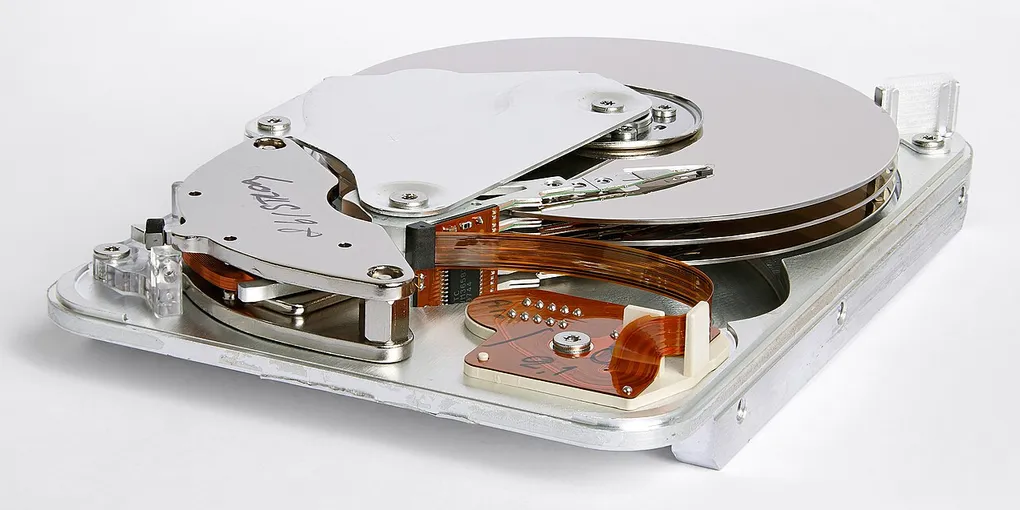
Hero image: Eric Gaba (Sting), CC BY-SA 3.0, via Wikimedia Commons.
Frequently Asked Questions
What is the 3-2-1 backup rule?
It is the standard rule for protecting data: keep 3 copies of everything important, on 2 different types of storage media, with 1 copy stored offsite (cloud or another building). The reason is simple — the three most common ways data dies are hardware failure, theft or fire, and ransomware, and each copy protects against a different one.
How often should I back up my computer?
As often as you create new data — for most people that means daily, and automatic tools make that painless. Time Machine on Mac, File History on Windows and cloud backup services run on a schedule you never have to think about. The key is automation: a backup that depends on remembering to plug in a drive on Fridays will eventually stop happening.
Is cloud storage by itself enough of a backup?
No. A single cloud copy is still just one copy, and it fails for its own reasons: your account gets locked, the service shuts down, or a sync error deletes files on both ends. Cloud is excellent as the '1 offsite' copy in the 3-2-1 rule, but it should sit on top of a local backup, not instead of one.
Is syncing with Google Drive or iCloud the same as backing up?
Not really. Sync mirrors files both ways — if you delete a file on your laptop, it is deleted from the cloud too, and ransomware can happily delete both. Real backup services keep version history and deleted files for a set period, and a real local backup keeps a second copy that sync cannot reach.
What is the 3-2-1-1-0 backup rule?
An extension of the 3-2-1 rule used by IT professionals: 3 copies of your data, on 2 types of media, with 1 copy offsite, 1 copy offline or air-gapped, and 0 errors proven by a test restore. The extra offline copy is the one that survives ransomware — an unplugged drive cannot be encrypted. You get the 0 for free with a monthly restore test.