Quick answer
OCR makes a scan searchable only after text has been recognized and indexed. Keep the untouched scan, create a searchable derivative, search with specific terms, and verify important names, dates and amounts against the page image because OCR can misread or omit text.
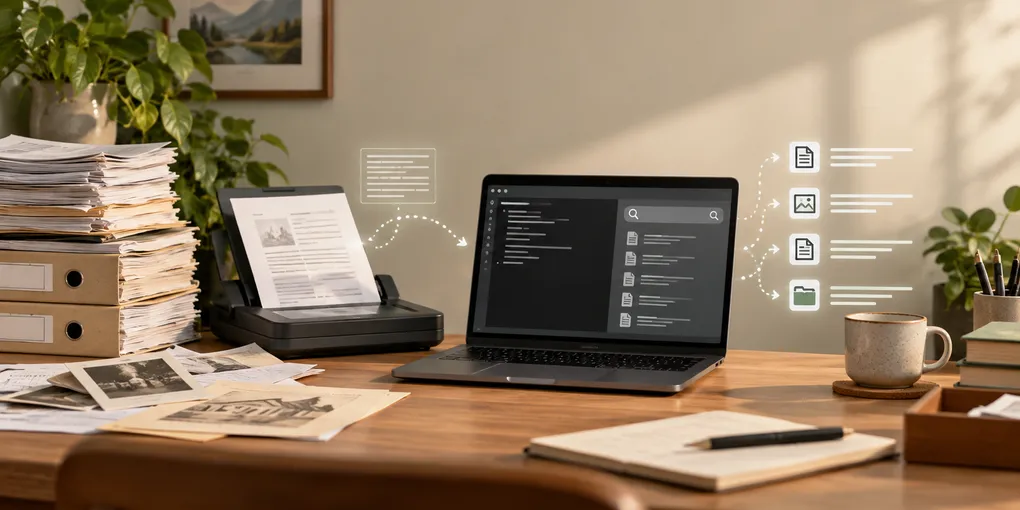
Searching an archive by filename stops working when the files are called scan-001.pdf, IMG_2048.jpg or document-final-final.pdf. OCR changes the job: it reads the pixels, creates machine-readable text, and lets a local search tool find a word inside the page. The safe workflow is to preserve the scan, make a searchable copy, index it, and verify the result against the image.
This guide is for a Linux household archive containing scans, receipts, forms and letters. OCR helps you locate a document; it is not proof that every recognized character is correct.
First check whether the file is already searchable
Open one representative PDF and try to select a sentence. Search for a distinctive word with the viewer’s find command. If no text can be selected or found, the document may be image-only. Do not run a destructive conversion over the only copy. Keep an untouched intake folder and write processed files to a separate location.
For example, a small archive can use this shape:
Documents/archive/
├── originals/2026/utility-bill-2026-08.pdf
├── searchable/2026/utility-bill-2026-08.pdf
└── review/ocr-needs-check.txt
The offline Linux document archive guide covers the wider folder and backup design. For a phone-originated scan, see the phone document scanning guide before processing.
Add a searchable text layer
A scanned PDF is often an image container. OCR adds an invisible text layer behind that image so a viewer and an indexer can match words without changing the visible page. Adobe’s documentation describes the same distinction and recommends saving a backup before recognition; browser-based tools describe similar local workflows but can be limited by memory, language data and batch size.
With OCRmyPDF installed, keep input and output separate:
mkdir -p "$HOME/Documents/archive/searchable/2026"
ocrmypdf -l eng \
  "$HOME/Documents/archive/originals/2026/utility-bill-2026-08.pdf" \
  "$HOME/Documents/archive/searchable/2026/utility-bill-2026-08.pdf"
Check the current OCRmyPDF and Tesseract documentation for the language code and options available on your distribution. Do not assume that eng is sufficient for a multilingual household archive. Keep the original even when the command succeeds: a successful process says that a file was produced, not that every word was recognized.
Build an index that stays local
For a few PDFs, searching inside each file may be enough. For a growing archive, use a local full-text indexer that supports the formats you actually store. An index normally stores extracted text and a path back to the source; it does not make a missing OCR layer appear automatically.
Use one small batch first. Index five or ten processed documents, then search for terms you know are present: a supplier, a street name, a policy number fragment or a four-digit year. A useful result should identify the file and let you open the page where the match occurs. If a tool offers image OCR and text indexing as separate options, enable both only for folders where the privacy and storage tradeoffs are understood.
Search with a narrowing sequence
Start with a distinctive term, not a common word such as “the” or “invoice.” Then narrow the result set by year, folder, document type or a second term. The sequence below is a practical worked example for finding a utility bill:
| Search | What it tests | Next move |
|---|---|---|
Nordhavn |
Merchant or provider text was recognized | Open the strongest matches |
Nordhavn 2026 |
The year and provider co-occur | Limit to the 2026 folder |
meter or account |
A synonym survives OCR better | Inspect nearby pages manually |
4817 |
A short account fragment is present | Verify every digit in the scan |
If the expected document does not appear, try a synonym, remove punctuation, search a shorter fragment, or inspect the image’s recognized text. OCR can turn 0 into O, split a word at a line break, or omit faint characters. A result that looks plausible still needs visual confirmation when it affects money, identity, dates or deadlines.
Review the archive instead of trusting the index
After each batch, sample one document from the beginning, middle and end. Check that the page count is unchanged, the original is still present, the text layer can be selected, and at least two known words can be found. Record failures in a small review log rather than repeatedly guessing at the search query.
Use extra caution with thermal receipts, glossy photos, folds, handwriting, skewed pages and low-contrast copies. Printed text is generally easier for OCR than irregular handwriting. If the document is important, compare names, dates, totals, reference numbers and addresses character by character with the image. Search is a retrieval aid, not an accounting or legal validation step.
Keep filenames and OCR derivatives understandable
A searchable text layer does not remove the value of a stable filename. A pattern such as 2026-08-14_provider_document-original.pdf and 2026-08-14_provider_document-searchable.pdf makes the relationship obvious. Avoid putting full card numbers or unnecessary personal identifiers into names. Back up both the original and searchable copy, and test that a restore still opens and searches.
The useful promise of local OCR is modest and durable: you can find the likely document faster while keeping the source page available for checking. Preserve the source, OCR a copy, index a small test batch, search with distinctive terms, and treat every consequential field as something to verify visually.
Sources
Frequently Asked Questions
Why can’t I search a scanned PDF?
A scan may contain only page images. Run OCR to add a text layer, then confirm that a distinctive word can be selected and found before filing the searchable copy.
Can OCR search replace the original document?
No. Keep the original scan as the visual reference and treat OCR as a derivative used for discovery. Check the image whenever a value or identity matters.
What should I do when OCR misses a word?
Try a synonym, a shorter distinctive fragment or a corrected text layer, then inspect nearby pages manually. Cropping, glare, handwriting and poor contrast can all affect recognition.