Quick answer
Do not OCR the only copy. Preserve the original filename and file in an untouched folder, write searchable derivatives to a separate folder, and verify the printed date, filesystem timestamps and PDF metadata independently. OCRmyPDF can add a text layer, but tools differ in what they preserve; test a small copy before processing a household archive.
OCR can make an old scan searchable, but it also creates a trust problem: which date did the tool preserve, and which one did it change? A file has a filename, filesystem timestamps, PDF metadata and often a date printed on the page. Those are different fields. A safe Linux workflow keeps the original untouched, writes OCR to a separate derivative, and checks each field that matters before scaling up.
This guide is for household archives of receipts, letters, forms and scanned PDFs. It does not promise that a particular OCR application will preserve every timestamp. The reliable part is the workflow: make a copy, test it, compare the fields, and keep the source.
Separate the four kinds of “date”
Before running OCR, write down what you are trying to preserve. The date printed on a bill may be the document’s issue date. The filesystem modification time says when the current file was last changed. PDF metadata may contain a creation or modification value. The filename may encode a date chosen during filing. A successful OCR run can preserve one while replacing another.
| Field | Where to inspect it | Why it matters |
|---|---|---|
| Printed date | The page image or visible text | It is evidence of the document’s own date |
| Filename | The directory listing | It keeps your filing convention stable |
| Filesystem times | stat on Linux |
It supports chronological sorting and audit notes |
| PDF metadata | pdfinfo or a PDF viewer |
It may record creation or modification history |
The PDF-XChange discussion describes a large archive whose original timestamps made chronological browsing possible. It also records the opposite risk: OCR is a content edit, so a protected document may refuse processing. Adobe’s community guidance is a useful warning that changing a document can create a new change date and that Acrobat does not necessarily prevent it.
Build an untouched source and a searchable copy
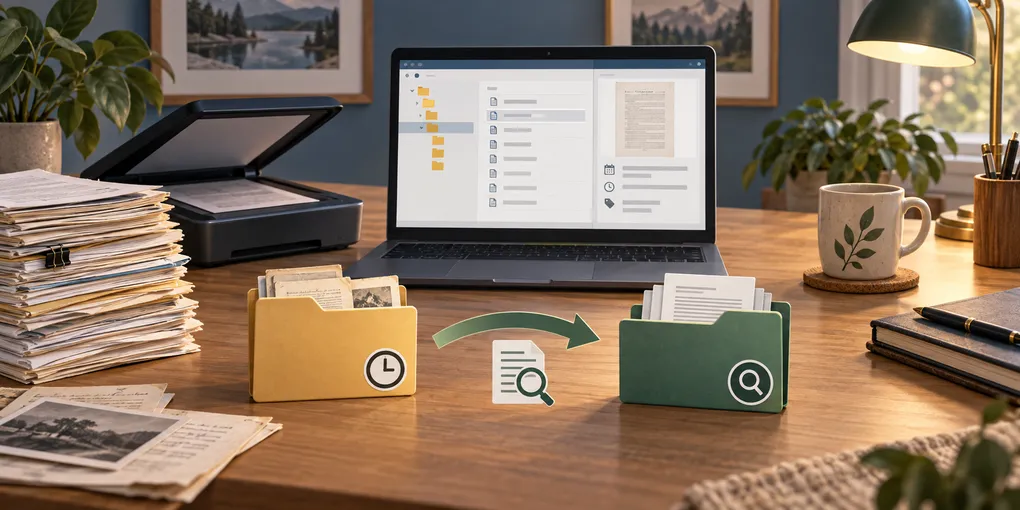
Choose one small test folder first. Do not let an OCR command overwrite your only scan. A simple layout makes the relationship visible:
Documents/archive/
├── originals/2024/2024-11-03-bank-letter.pdf
├── searchable/2024/2024-11-03-bank-letter.pdf
└── checks/2024-11-03-bank-letter.txt
The offline Linux document archive guide covers the wider folder and backup design. The guide to searching OCR text locally covers indexing after the searchable copy has passed review.
Create the folders and copy a representative file without changing its name:
mkdir -p "$HOME/Documents/archive/originals/2024" \
         "$HOME/Documents/archive/searchable/2024" \
         "$HOME/Documents/archive/checks"
cp --preserve=mode,timestamps \
  "$HOME/Documents/archive/inbox/2024-11-03-bank-letter.pdf" \
  "$HOME/Documents/archive/originals/2024/2024-11-03-bank-letter.pdf"
cp --preserve helps the test copy begin with matching filesystem metadata. It is not a guarantee that later OCR will retain it. Record the source before processing:
stat --printf='name=%n\nsize=%s\nmtime=%y\nctime=%z\n' \
  "$HOME/Documents/archive/originals/2024/2024-11-03-bank-letter.pdf"
pdfinfo "$HOME/Documents/archive/originals/2024/2024-11-03-bank-letter.pdf" \
  | grep -E '^(CreationDate|ModDate|Pages):'
Keep that output in the checks folder with the date of the test. Do not treat ctime as a document creation date: on Linux it is an inode-change timestamp and can change when metadata or permissions change.
Run conservative OCR with separate input and output
With OCRmyPDF installed, write a new searchable file:
ocrmypdf -l eng \
  "$HOME/Documents/archive/originals/2024/2024-11-03-bank-letter.pdf" \
  "$HOME/Documents/archive/searchable/2024/2024-11-03-bank-letter.pdf"
The official documentation distinguishes three useful behaviors. The default mode can stop when text already exists. --mode skip leaves pages with existing text alone, --mode redo replaces an existing invisible OCR layer, and --mode force rasterizes all content. For an archive, start conservatively: skip or default mode reduces unnecessary rewriting. Use force only when you understand that rasterization can discard selectable text, form fields or other structure.
Do not infer preservation from a successful exit code. OCRmyPDF can produce a valid output while the output file receives a new filesystem timestamp or different PDF metadata. The image and the searchable text layer are also separate concerns. Compare the output with the source, and keep both even when the result looks correct.
Verify filenames, timestamps and content
Run the same inspection against the derivative:
stat --printf='name=%n\nsize=%s\nmtime=%y\nctime=%z\n' \
  "$HOME/Documents/archive/searchable/2024/2024-11-03-bank-letter.pdf"
pdfinfo "$HOME/Documents/archive/searchable/2024/2024-11-03-bank-letter.pdf" \
  | grep -E '^(CreationDate|ModDate|Pages):'
pdftotext -layout \
  "$HOME/Documents/archive/searchable/2024/2024-11-03-bank-letter.pdf" - \
  | sed -n '1,20p'
Use a short checklist rather than one vague “looks okay” decision:
- The original filename is unchanged and the original file still exists.
- The printed date, sender, account fragment and amount match the page image.
- The searchable copy has the expected page count.
- A distinctive word can be selected and found in a PDF viewer.
- The filesystem times and PDF metadata are either preserved as intended or documented as changed.
- Opening the original and derivative still works after copying them to a second location.
If the dates do not match, stop the batch. Decide whether the requirement is to preserve the source’s filesystem mtime, the PDF’s internal metadata, the printed date, or all three. A post-processing command might restore an mtime, but that does not restore PDF metadata or prove that the content was not changed. Treat any such repair as a documented transformation, not as preservation by the OCR tool.
Troubleshoot without rewriting the archive
If OCR changes names, use the original filename as the stable identifier and give the derivative a predictable suffix, such as -searchable.pdf. Do not put unnecessary personal or account numbers into filenames. If a tool only writes a new file, keep the original and record the relationship in a small manifest rather than deleting the source.
If OCR fails on a password-protected or editing-restricted PDF, respect that restriction. The PDF-XChange discussion confirms that content-changing OCR is not equivalent to editing metadata. Make an authorized working copy only when you are allowed to modify the file, and keep the failure in your review log.
If OCR quality is poor, improve the scan or language selection before trying aggressive modes. OCRmyPDF documents language packs, text-layer modes and image-processing tradeoffs; its warnings about rasterization and structure preservation are reasons to test with representative documents, not reasons to process everything with --force-ocr.
Finally, process a batch in small groups. After five or ten files, compare names, dates, page counts and searchable terms again. Back up both originals and derivatives, and perform a restore test before retiring any inbox files. The dependable promise of local OCR is not that metadata never changes. It is that you can add search while retaining a verifiable source of truth.