Quick answer
Keep the untouched scan, install OCRmyPDF with Tesseract language data, and write the OCR result to a separate PDF. For a one-off job, run ocrmypdf -l eng input.pdf output.pdf, then search and visually compare names, dates, totals and page order. OCR is a convenience layer, not a replacement for the original document.
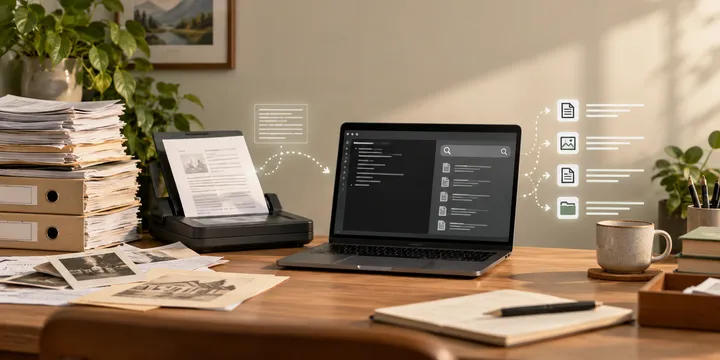
OCR is useful when a household archive contains image-only PDFs: you can search for a word, copy a reference number or find a document without opening every page. The safest Linux workflow is deliberately boring: preserve the scan, add a searchable text layer to a copy, and inspect the fields where a recognition error would matter.
This guide is for printed letters, bills, receipts, contracts and similar private papers. It does not promise reliable recognition of handwriting, seals or difficult forms. Keep the original paper or an untouched scan when the record has legal, financial or identity value.
Choose a local workflow
There are three sensible starting points:
| Situation | Good starting point | Why |
|---|---|---|
| A few existing PDFs | OCRmyPDF and Tesseract | A repeatable command-line workflow with separate input and output files |
| You prefer a desktop app | Scantpaper | Scan, edit and enable OCR from a Linux GUI |
| You are scanning batches | A SANE-based scanner workflow such as ScanMole | Scanning and OCR can be combined while the files stay on the machine |
The choice is about handling, not a guarantee of accuracy. OCRmyPDF adds a searchable layer to a scanned PDF; Tesseract supplies recognition. Scantpaper documents a GUI path that uses SANE, img2pdf, OCRmyPDF and Tesseract. ScanMole documents batch scanning, PDF/A output and SANE-compatible devices. Read the current project documentation before installing because distribution package names and supported Python versions change.
Install the tools without sending documents away
On Debian or Ubuntu, search your package manager for ocrmypdf, tesseract-ocr and the language packages you need. Fedora users may find the equivalent packages under ocrmypdf, tesseract and tesseract-langpack-*. The exact names are distribution-specific; do not copy a package list for another release without checking it.
Check what is available before processing a private archive:
command -v ocrmypdf
command -v tesseract
tesseract --list-langs
ocrmypdf --version
The language list matters. eng is English; other language codes depend on installed Tesseract data. If the document is bilingual, install both language packs and pass them with a plus sign, for example -l eng+deu. Do not claim that adding a language always improves recognition: a wrong or missing language model can make the result worse.
Keep the scan and create a separate OCR copy
Make a small test folder, copy one representative PDF into it, and never use the same path for input and output while you are learning:
mkdir -p ~/document-ocr-test
cp ~/Scans/utility-bill-2025-01.pdf ~/document-ocr-test/original.pdf
ocrmypdf -l eng --deskew ~/document-ocr-test/original.pdf \
  ~/document-ocr-test/original-searchable.pdf
The input remains the untouched scan. The output is the file you search and share internally. --deskew can help with pages that are slightly rotated, but it is not a repair for a blurred or badly cropped scan. If your document already has a text layer, consult the OCRmyPDF options before forcing a second OCR pass.
For a bilingual document, replace -l eng with the language combination supported by your installation. For an image file rather than a PDF, first put the pages into a PDF with a scanner or image-to-PDF tool, then use a workflow that matches the input format documented by your installed OCRmyPDF version.
Use a worked decision check before doing a whole archive
Test one page that represents the difficult parts of the collection: a small date, a table, a faint photocopy or a page with two languages. Use this checklist:
- Open the searchable PDF and search for a word that is visibly present.
- Copy a short phrase and compare it with the image.
- Check every name, date, amount, reference number and signature visually.
- Confirm that page count and page order match the original.
- Record the command, language codes and output filename beside the file.
If the result fails, improve the source before changing many OCR flags. Rescan at a sensible resolution, clean the glass, flatten the page and use even light. Color or grayscale may preserve a faint stamp that black-and-white loses. Conversely, ordinary clean text often produces smaller files in black-and-white. The correct setting depends on the document, so treat the first file as a test rather than evidence that the entire archive will work.
Protect privacy and archive provenance
Local processing reduces the number of services that receive the document, but it does not make a computer automatically safe. Use a user account with a protected home directory, keep backups encrypted when appropriate, and avoid putting sensitive scans in shell history, public sync folders or temporary directories shared with other users.
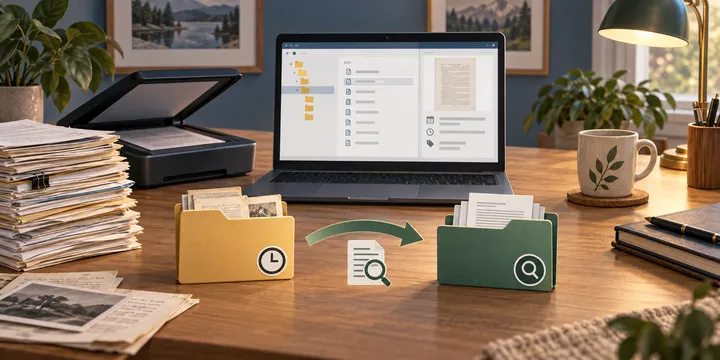
Give the two versions unmistakable names. For example, keep 2025-01-utility-bill-original.pdf and create 2025-01-utility-bill-ocr.pdf. Store a short text note with the OCR command and language selection. This makes later correction possible and prevents an OCR copy from being mistaken for the source.
If you are building a larger archive, first decide on a stable folder and filename scheme. The related guide on building an offline document archive on Linux covers the storage structure; this article focuses on recognition. If the paper starts as a phone photo, see how to scan a document with your phone before OCR. A clear capture makes every later step easier.
Know when to stop trusting the text layer
OCR text is excellent for discovery and often good enough for copying a non-critical phrase. It is not a proof that the original says what the text layer says. Search results can miss a word, and a visually plausible character can still change a bank reference or a legal date.
For high-consequence records, use the searchable layer to locate the page, then read the page image itself. Keep the original scan, retain the paper when required, and treat an OCR correction as a new derived file rather than silently replacing the source. If the document is mostly handwriting, unusual typography, a table or a poor photocopy, mark it as needing manual review instead of inventing confidence.
The practical local pipeline is therefore: scan carefully, preserve the original, OCR a copy, test a representative page, and search with visual confirmation. That gives a Linux household archive useful retrieval without turning an automated guess into the record of truth.
Sources
Frequently Asked Questions
Can OCR run entirely locally on Linux?
Yes. OCRmyPDF and Tesseract can process a local PDF without uploading its contents to a cloud service. Package availability and language-data names vary by distribution, so use your distribution's packages or the projects' current installation instructions.
Should I OCR over the original PDF?
No while learning or handling important household records. Keep the scan unchanged and write a new output file. That gives you a clean fallback when recognition or page rotation is wrong.
Why is some OCR text wrong?
OCR can misread faint, skewed, handwritten, low-resolution or complex documents. Check names, dates, account numbers, totals and signatures against the image instead of trusting the extracted text blindly.