Quick answer
Create or open the source file, choose Export, Download or Print, select PDF, and save a named copy. Then open the PDF on the device your recipient will use, check every page, links and small text, and share the PDF rather than an editable original when they only need to read it.
A PDF is useful when you need to hand someone a finished document without asking which word processor, spreadsheet app or font they use. It can hold a letter, invoice, slide deck, scanned form, collection of images or saved webpage in one file.
The button is not the hard part. A good PDF has the right pages, a readable layout, a useful filename and deliberate sharing. Follow the workflow below whether you are using Windows, macOS, a browser, an iPhone or an Android phone.
1. Decide what the PDF needs to do
Before exporting, answer one question: is this a finished copy or a working file?
Use a PDF when the recipient mainly needs to read, print, archive or review a stable version. Keep the editable original when they need to change paragraphs, update formulas, move slides or reuse the layout. Sending a PDF of a spreadsheet does not preserve the spreadsheet’s useful calculations, and a scan of a form does not become an editable form just because the letters are visible.
Also decide whether the output needs one page or several, colour or grayscale, searchable text or a faithful image. This choice affects the source and the final checks.
2. Clean up the source before exporting
Exporting preserves mistakes very efficiently. Read the source once with the PDF in mind:
- Remove comments, tracked changes and private notes that should not travel with the file.
- Check names, dates, totals, page numbers and contact details.
- Make headings, lists and tables consistent.
- Replace missing or low-resolution images before they become blurry in the final file.
- Make sure links point to the intended destination.
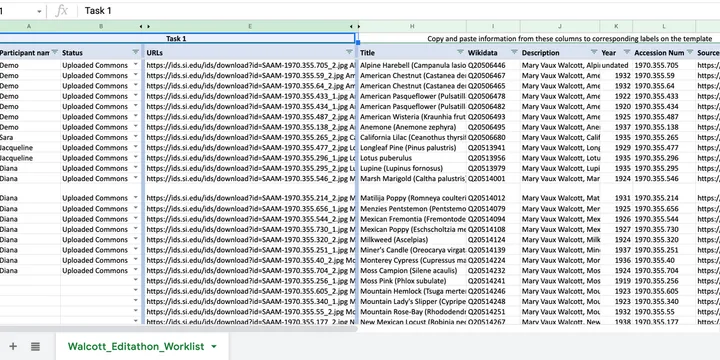
If you are turning a spreadsheet into a PDF, set the print area and page orientation before exporting. A wide sheet that looks fine on screen can become six pages of clipped columns. If the underlying data needs structure and formulas, the spreadsheet guide covers a safer setup before you create the hand-off copy.
3. Choose the app that owns the original
Start in the application that created the source instead of uploading a private document to a random online converter. Word, Excel, PowerPoint, Google Docs, Pages and many other apps have their own PDF export or print workflow.
This preserves more of the original layout and keeps sensitive material under the account or device controls you already understand. An online converter may be convenient, but you should know where the file goes, how long it is retained and whether the service is appropriate for contracts, identity documents or financial records.
For a paper document, use a built-in scanner when possible. The phone document-scanning guide explains how to capture every edge, combine pages in order and save a readable PDF rather than a pile of unrelated photos.
4. Make a PDF from Microsoft Office
In desktop Word, Excel or PowerPoint, use the app’s File menu and look for Save As, Export or the PDF option. Microsoft’s current instructions describe choosing PDF in the file-type list; they also distinguish a standard option for print quality from a minimum-size option for online sharing.
Choose the output deliberately:
- Standard or print quality: use when the document will be printed or contains images that must remain clear.
- Minimum size: use when a smaller attachment matters more than maximum print quality.
The names can vary between Office versions. Do not click through on autopilot: check the page range, document properties and whether comments or markup are included before saving.
5. Make a PDF from Google Docs, Sheets or Slides
In a Google file on a computer, open File and choose Download, then choose the PDF format when it appears. Google’s Docs Editors Help also documents a print route for a large Google Docs file in Chrome: File > Print, choose Save as PDF as the destination and click Save.
If the PDF is for someone else, do not assume that your browser preview represents the final file. Open the downloaded copy and inspect page breaks, tables, headers, footers and images. A shared Google document may continue to change; a downloaded PDF is a dated snapshot, so include a version or date in the filename when that distinction matters.
Keep the editable Google file if collaborators still need to work in it. The PDF can be the review or archive copy, not necessarily the only copy.
6. Make a PDF on a Mac or from another app
On macOS, Apple documents a system-wide route for apps that can print: choose File > Print, click the PDF button or PDF menu, choose Save as PDF, then select a name and location. The steps are in Apple’s Mac support guide.
A similar Print to PDF or Save as PDF choice may appear in other desktop apps and operating systems. The wording is less important than the preview. If the print dialog shows the wrong paper size, an unexpected page range or a clipped margin, fix those settings before saving.
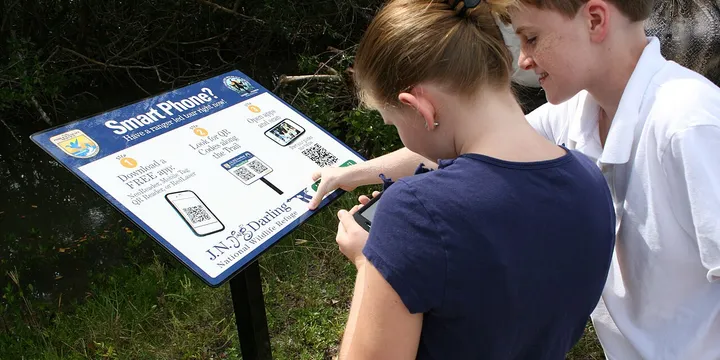
For a webpage, first remove clutter if the site offers a reader or print view. Check whether the saved copy includes the parts you are allowed to keep and share. A PDF is not permission to redistribute somebody else’s protected material. If you are putting the finished file on a printed handout or poster, the QR code guide covers the destination, testing and non-camera fallback.
7. Combine images or scans in the right order
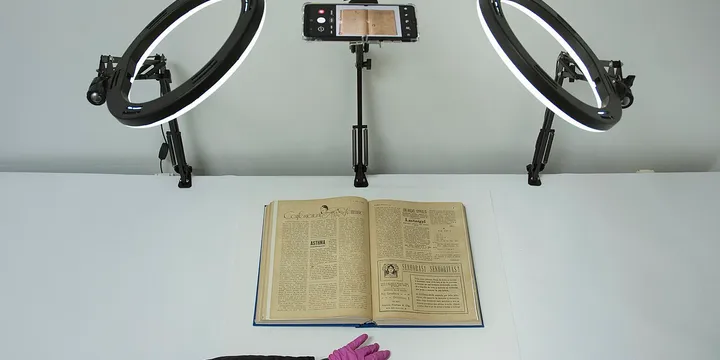
A PDF made from several photos is only useful if the pages are upright, sharp and ordered. Name or arrange the images before combining them, then compare the page thumbnails with the original stack.
For receipts, signed forms and household records, retain every corner that carries information. A cropped signature, total, date or page number can make the file unusable. If text must be searchable, use a scanning or OCR feature that you trust, but compare the recognised text with the image: OCR can misread names, account numbers and decimal points.
Never treat a blurred scan as fixed because a filter made it darker. Retake the page in even light when important information is unclear.
8. Check layout, reading order and accessibility
Open the exported PDF at normal zoom and then inspect the difficult parts. Look for:
- Headings that are stranded at the bottom of a page
- Tables split in a way that hides their headers
- Images or signatures pushed outside the margin
- Tiny text, low contrast or colour-only instructions
- Broken links, missing characters and blank pages
- A reading order that makes sense when you move through the document
If the PDF is for a presentation, include the source file or a separate accessible version when the audience needs to edit, search or use assistive technology. The presentation preparation guide also recommends a PDF fallback, but a fallback should be tested—not merely exported five minutes before the talk.
9. Give the file a useful name and location
Use a filename that tells you what the document is without opening it:
2026-09-01-apartment-inspection-report-v2.pdfA practical pattern is date-topic-person-or-project-version. Avoid document.pdf, scan001.pdf and final-final.pdf. Do not put passwords or unnecessary identity numbers in a filename; names can appear in notifications, downloads and shared-folder activity.
Save the PDF where you can find it again. For a household record, a structured Google Drive filing system can help, but keep another copy for important documents and check who can access the folder.
10. Reopen the PDF before you send it
The export is not finished until you verify the saved file, not only the source document. Open it from the location you will share and check:
- The file opens in a second PDF viewer or on the recipient’s likely device.
- The page count, order and orientation are correct.
- Names, totals, dates, signatures and small text are readable.
- Links work and no private comments or hidden pages were included.
- The filename and version are clear.
- The attachment or shared link gives the recipient the intended access.
For sensitive material, share only the necessary pages and choose named recipients or view-only access when editing is not required. For an important contract or record, keep the editable original and the verified PDF separately so a later edit does not silently replace the copy you sent.
Making a PDF is a short menu action; making a dependable PDF is a checkable routine. Prepare the source, export from a trusted app, inspect the pages, name the copy and open it once more before sharing.
Hero image: Cmminleapian, CC BY-SA 4.0, via Wikimedia Commons.
Sources
Frequently Asked Questions
What is the easiest way to make a PDF?
Open the document, choose Export, Download or Print, select PDF or Save as PDF, choose a filename and save it. The exact menu depends on the app, but the final step is always to reopen the PDF and check the result rather than trusting the preview.
How do I make a PDF from a Google Doc?
In Google Docs on a computer, open the document and choose File > Download, then choose PDF Document when that option is offered. Google also documents File > Print and Save as PDF for a large Google Docs file in Chrome.
Can I make a PDF on an iPhone or Mac?
Yes. On a Mac, Apple documents File > Print, then the PDF button or menu and Save as PDF. On an iPhone, use the app's Share or Print workflow when it offers one; for paper pages, the phone document-scanning guide explains how to create a clean PDF.
What is the difference between a PDF and an editable document?
A PDF is usually the better hand-off format when someone needs to read or print a finished layout. Keep the original Word, Pages, Slides or spreadsheet file when another person must revise the content, formulas or layout.