Quick answer
Choose the exact destination first, create the code with a trusted built-in tool or generator, then scan it from the final printed or displayed version on more than one phone. Label the destination in plain text and inspect every link before you or anyone else signs in, pays or downloads anything.
A QR code moves someone from a camera to text, a webpage, Wi-Fi access or another small piece of information. The square is only the transport layer; the real experience is the destination, the explanation and the checks you make before asking someone to scan it.
Decide the destination first, create the simplest code that serves it, test the final version and give people a non-QR alternative. The steps below cover webpages, Wi-Fi, Microsoft Word and printed signs.
1. Decide exactly what the code should open
Start with the content, not a QR generator. Choose one purpose:
- A stable webpage, menu, map or event page
- A PDF or other downloadable document
- A short plain-text message
- A Wi-Fi network invitation
- A contact or email action
For a webpage, copy the complete URL and open it in a private window or another browser first. Check the spelling, HTTPS connection, page title and mobile layout. If the destination is a document, upload the finished file before creating the code. A QR image does not update itself when you replace a file somewhere else.
Do not put passwords, access tokens, identity numbers or other secrets directly into a code that may be photographed. For an important document, the PDF guide explains how to create and check the file before you turn it into a link.
2. Choose a fixed destination or a changeable redirect
A static QR code encodes its destination directly. That makes it predictable: the graphic keeps pointing to the same URL or text until you create a new graphic. It is a good fit for a permanent website address, a business card or a home Wi-Fi network that rarely changes.
Dynamic codes use a redirect that can let you change the destination or measure scans, but add an account, possible subscription and another point of failure. Check the provider’s terms and scan-data practices first.
For most personal projects, a stable URL plus a static code is easier to understand. If the destination may change, put a short, memorable URL in plain text beside the code as a fallback.
3. Create a QR code for a webpage in Chrome on a computer
Google documents a built-in QR workflow in Chrome for sharing a page:
- Open the final webpage in Chrome.
- Select the three-dot menu.
- Choose Cast, save, and share, then Create QR code.
- Choose Copy if you need the link in another app, or Download to save the code as an image.
- Scan the downloaded image from another screen or phone before you print it.
Chrome creates the code from the page you are viewing, reducing copying errors. It does not guarantee that the page will stay online, so check the destination again after publishing a flyer, menu or presentation.
For a map, open the exact place or directions page first. For a file, confirm that the recipient can view it without an unexpected sign-in. The Google Maps guide covers place, route and sharing checks.
4. Create a QR code on an Android phone
Chrome also supports creating a QR code from the current page on Android. Open the page, tap the three-dot menu beside the toolbar, choose Share, select QR Code, then follow the on-screen options to share or download it. Google’s Android Chrome instructions document this route.
The result may be saved to Photos, Files or another share target. Find the saved image and test that file, not just the Chrome preview. For a poster, send the original image to the layout app without a screenshot, compression or decorative crop.
On iPhone, the menu depends on the app. If it does not offer a QR command, use a computer or a documented generator that explains what it stores. Do not upload a private document to an unknown service for convenience.
5. Create a QR code for Wi-Fi access
Many Android phones can create a Wi-Fi QR code from the network already saved on the device. Google’s Android Help gives this general path:
- Open Settings.
- Tap Network & internet, then Internet.
- Select the connected Wi-Fi network.
- Tap Share and authenticate if the phone asks.
- Let the other device scan the displayed code.
Menus vary by manufacturer. The code contains network connection information, so display it only to intended guests; treat a printed Wi-Fi code like a spare key if the network reaches household devices, cameras or work computers.
After creating it, test with a guest phone. Confirm that it joins the intended network and that the password has not been changed since the code was made. A new password generally means a new code.
6. Create one in Microsoft Word when the document is the source
Microsoft documents a DisplayBarcode field that can render several barcode types, including QR. In Word, insert or update a field and provide the text to encode; for a QR code, that text can be a website address. Use Microsoft’s current field-code instructions because ribbon commands vary between Word versions.
This option is useful for a label, letter or internal document that already lives in Word. Keep the URL visible in ordinary text too, for readers without a camera or using an accessibility tool.
After updating the field, scan it at normal reading size. A field can be clipped by a text box, footer, table cell or print margin, and exporting to PDF can change the appearance. Test the version you will distribute.
7. Keep the code readable and give it context
A scanner needs a clear pattern and enough contrast. Use a dark code on a light, non-reflective background, preserve the blank margin around the square and avoid putting text, logos or shapes over the data area. If you customize the colours or add a logo, scan the result after every design change.
Size the code for the actual distance and camera. A small table card can use a smaller code than a poster, but viewing distance, lighting, print quality and phone cameras all matter. Do not shrink it merely for decoration.
Add a plain-language label such as Scan for today’s menu or Wi-Fi for apartment guests. Print the destination or a short URL beside it when practical. The label tells people what to expect and gives them a route that does not depend on a camera.
8. Test the final image, not just the source URL
Run a small release test before sharing:
- Scan the image from the saved file, not only from the generator preview.
- Scan the printed copy at its real size and distance.
- Try at least two phones or camera apps.
- Test on bright and ordinary indoor light if it will be used in both places.
- Confirm that the exact page, file or Wi-Fi network opens.
- Check that buttons, forms, downloads and sign-in steps work on a phone.
- Confirm that the code has a blank margin; do not assume every code will recover from damage.
If a code fails, remove decoration and restore contrast and margin, then create a new image and repeat the test. Keep the tested file separate from drafts.
9. Protect people from unsafe destinations
A QR code is not a trust mark. The FTC warns that scammers can use QR codes to send people to harmful links or phishing pages. Before following one, pause and inspect the address shown by the camera or browser. Be especially cautious when a code arrives unexpectedly, pressures you to act immediately, asks for payment or requests a password.
If you publish a code, make the destination visible and keep it honest. Do not make a menu code redirect through an unrelated domain, add an unnecessary download or request more data than the purpose requires. For account sign-in, use the service’s normal app or typed website when the QR destination is unfamiliar. The two-factor authentication guide covers why a setup code should be handled as sensitive account material rather than shared like a poster.
10. Record, review and replace it when needed
Save the final QR image with a useful filename, such as 2026-09-menu-qr.png, alongside the destination URL and test date. Record who owns it and review a public sign after the page or Wi-Fi password changes, or when the sign moves outdoors.
Replace the image if the URL changes, the code is damaged, the redirect service closes, the Wi-Fi credentials change or the destination now asks for information that the label does not explain. Remove old printed copies when they could send people to the wrong place.
A good QR code opens the intended mobile destination, sets expectations, offers a non-camera alternative and remains safe after it leaves your screen. Choose carefully, test the final output and review it like any other public link.
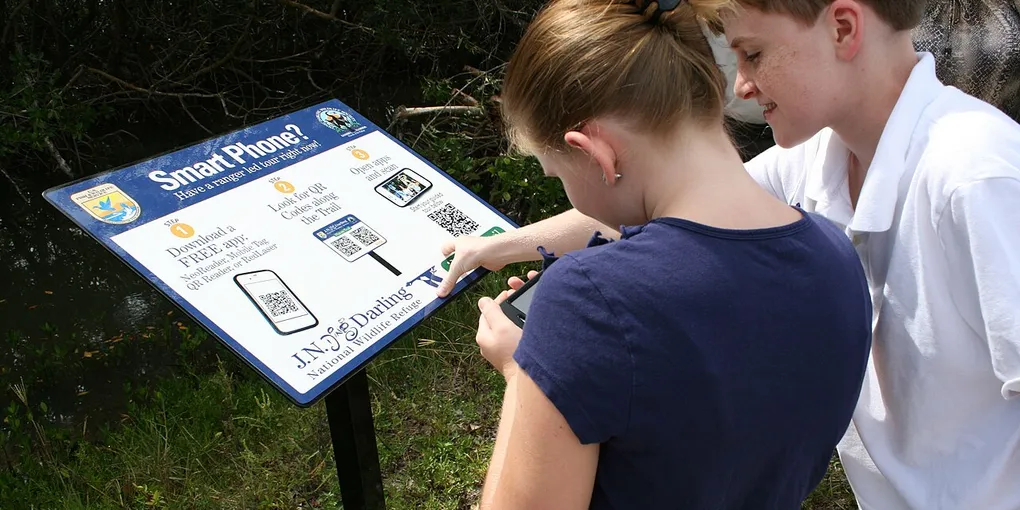
Hero image: U.S. Fish and Wildlife Service Headquarters, public domain, via Wikimedia Commons.
Sources
Frequently Asked Questions
What is the easiest way to create a QR code?
For a webpage, open the page in Chrome and use More > Cast, save, and share > Create QR code on a computer, or More > Share > QR Code on Android. Download the image, then scan the saved or printed version before sharing it.
Can I create a QR code for Wi-Fi?
Yes. On many Android devices, open Settings > Network & internet > Internet, choose the connected Wi-Fi network and tap Share. Android displays a QR code that another device can scan to join the same network. Menus vary by manufacturer and Android version.
How do I make a QR code in Microsoft Word?
Word supports a QR barcode through the DisplayBarcode field. Insert a field, choose the QR barcode type and provide the destination text, such as a URL. Test the rendered code after updating the field and before printing.
Do QR codes expire?
A printed static code does not have an automatic expiry date: it keeps encoding the same text or URL. It stops being useful if the destination is removed, the link changes, the code is damaged or a service-generated redirect is disabled.