Quick answer
Use Google Keep as a small capture-and-retrieval system: make one note per idea, choose a checklist when actions matter, add a short label, pin only active notes, and archive finished material. Add reminders for time-sensitive notes, share only notes that need collaboration, and review the collection before it becomes another inbox.
Google Keep is most useful when it answers a small question quickly: what did I notice, decide or promise to do? It can hold a short idea, checklist, image, drawing or audio note, but it is not improved by turning every thought into a permanent wall of cards.
The practical system is simple: capture without friction, give each note one job, make important notes findable, and clear finished material. Google’s Keep overview documents the core workflow for creating, editing, organizing, archiving and sharing notes. Menu names can differ between the computer site and mobile apps.
1. Decide what belongs in Keep
Keep is a good front door for information that is short, useful and likely to be needed again soon:
- a shopping or packing list;
- a phone number or address you need while moving;
- an idea for a project;
- a short meeting takeaway;
- a photo of something you need to remember; or
- a reminder attached to a specific note.
It is a poor place for a long report, a detailed budget or a document that several people must edit. Put those in a suitable document, spreadsheet or shared folder instead; the Google Drive organization guide covers a clearer home for files.
Before creating a note, name the outcome: “buy replacement filter” is more useful than “kitchen thoughts.” That small decision keeps capture from becoming clutter.
2. Create one note for one job
On a computer, go to keep.google.com, choose Take a note, enter the text and choose Done. Google’s official Keep instructions also point to editing, organizing, archiving, lists, drawings and reminders.
Use one note per outcome. “Plan Saturday camping trip” can be one note while you are deciding; once it becomes a full itinerary, move the details into a document and leave a short link or next action in Keep. Do not create one giant “everything” note.
Start the title with the thing you will look for later: Return router — receipt and deadline, Ideas — autumn articles or Call plumber — leaking valve. A useful title is a retrieval shortcut.
3. Choose text, checklist, image or drawing deliberately
A plain text note is best for a thought, decision or short reference. Choose a checklist when the order does not matter but completion does: groceries, packing items, questions for an appointment or the steps for a small errand. For a fuller system of priorities, due dates and next actions, see the to-do list guide.
Use an image or drawing when the visual is the information, such as a measurement, rough layout or label. Add a sentence explaining why the image matters.
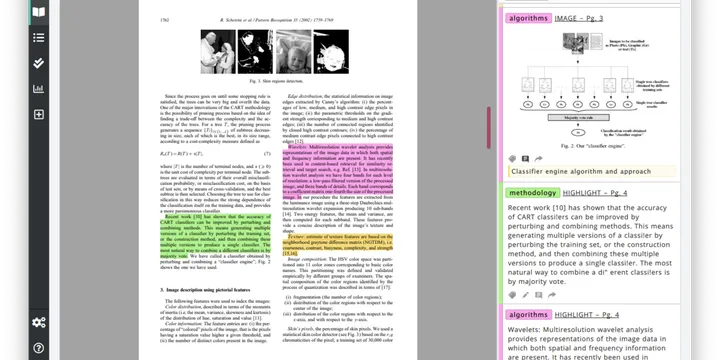
For a longer piece of writing, use Docs. Google documents that Keep can work beside a document or presentation: you can open the Keep side panel, save selected text or an image to Keep, and drag a note into a Google Doc or Slide. That makes Keep useful during research without pretending that a card is a finished article. The official Keep side-panel instructions describe the current workflow.
4. Write the next action, not only the topic
A note titled Kitchen does not tell you what to do. Add a first line such as:
Measure the gap beside the refrigerator before ordering a shelf.
Then add supporting details below it. For a meeting note, use a compact structure:
- Decision: what was agreed;
- Owner: who acts;
- Next step: the smallest visible action; and
- When: a date only if it matters.
This prevents Keep from becoming a museum of interesting fragments. If a note contains several unrelated actions, split it into separate notes or send the larger plan to your task or project system. The Google Calendar guide explains when a flexible action should remain a task instead of occupying a fixed calendar block.
5. Add a small, durable label
Labels answer what kind of thing is this? Use a small vocabulary such as Home, Work, Travel, Reference and Waiting. Do not create a new label for every person, week or temporary thought.
Google’s note-organization help says labels, colors and pins help sort and find notes, and that Keep supports up to 50 labels. That is a ceiling, not a target. A label called 2026-09-04-important-thing is usually a date in disguise; put the date in the note when the date is the useful fact.
Apply a label after the note has earned one. Capture first, classify second. This keeps the first seconds of note-taking fast while giving repeat-use notes a stable home.
6. Use color and pins as temporary signals
Color is a visual cue, not a filing system. You might use yellow for a fresh capture, blue for reference and green for a shared household list, but choose a convention you will remember. If the meaning of a color needs a separate explanation, the system is too elaborate.
Pin only notes that need attention now: today’s shopping list, the address you are travelling to or the decision you are actively making. Unpin them when the urgency ends. A feed where everything is pinned has no priority signal.
Keep’s organization guidance says pinned notes appear at the top of the feed. It also notes that when you share a note, your labels, colors and pins are visible only to you.
7. Add reminders to notes that need a time
A reminder is useful when the note should return to your attention at a particular moment: ask about the repair estimate Friday, bring the signed form to the appointment or check the freezer before leaving.
Open a new or existing note, choose Remind me, select the date and time, and save. Google’s reminder instructions say Keep reminders can be checked in Google Tasks, Google Calendar and Keep. They also describe recurrence and the way reminder notifications are handled across Google products.
Do not add reminders to ordinary reference notes. A reminder that fires for no real reason teaches you to dismiss every reminder. If the work needs a scheduled block rather than a prompt, use a calendar event or a dated task; the note can hold the context and the checklist.
8. Share the smallest note that solves the collaboration
Share a note when two or more people need to edit the same short list, plan or collection of details. Before sharing, remove private information that the other person does not need. A household grocery list and a bank-login note should not have the same access pattern.
On a computer, Google’s sharing guidance says to open the note, choose Collaborator, enter a name, email address or Google Group, and save. Collaborators can edit text, lists, images, drawings and audio recordings. If you delete a shared note that you own, Google says it is deleted for everyone.
When people only need to read the information, send the note with another app instead of granting edit access. Recheck collaborators when the project, trip or household arrangement ends.
9. Archive finished notes instead of deleting useful context
When a task is complete, remove it from the active feed. Archive a note when its context may be useful later; delete it when it is disposable or sensitive and no longer needed. A completed packing list may be worth keeping as a template.
Use a short closing line before archiving: Bought, Sent, Decided: blue model, or Moved to Drive. That makes an old note understandable later. If the content has become a document, spreadsheet or PDF, keep the durable file in the right place and leave only the link or reference in Keep. The PDF guide covers checking a finished PDF before sharing it.
10. Run a weekly Keep reset
Once a week, scan the active feed and ask:
- Does this note still need an action?
- Does it need a label, or is it a one-time capture?
- Is the reminder still correct?
- Should it be shared, unshared, archived or deleted?
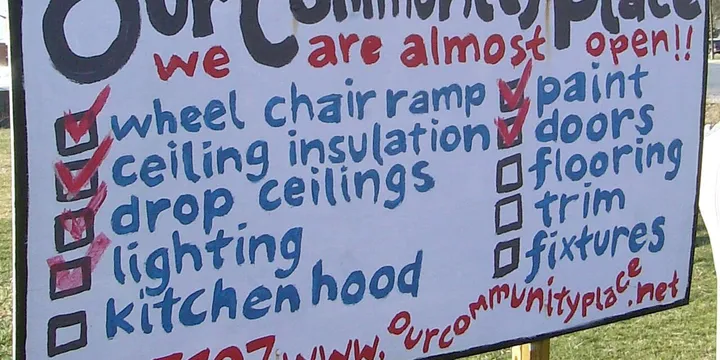
- Has it outgrown Keep and moved to a document, spreadsheet or calendar?
Turn vague notes into one next action or close them. Merge duplicates only when they truly serve the same purpose; otherwise, a short archive trail is easier to understand than a note that silently changes shape.
Google Keep stays useful when it remains a small, trusted layer between noticing something and putting it in the system where it belongs. Capture quickly, write for your future self, use labels sparingly, share carefully and clear the feed before it becomes another source of work.
Hero image: J.P. C., CC BY-SA 2.0, via Wikimedia Commons.
Sources
Frequently Asked Questions
What is the best way to use Google Keep?
Use Keep for quick notes, short checklists, reference snippets and reminders. Give each note one clear purpose, use a small set of labels, and archive or delete finished notes so the collection remains easy to scan.
How do I organize Google Keep notes?
Use labels for durable categories, colors for visual grouping and pins for the few notes that need attention now. Google says Keep supports up to 50 labels; do not create a label for every temporary project.
Can I share a Google Keep note with someone?
Yes. Open the note, choose Collaborator, add a person or Google Group and save. A collaborator can edit the shared note, so send a copy with another app when people only need to read it.
Do Google Keep reminders show in Google Calendar?
Google says Keep reminders can be checked in Google Tasks, Google Calendar and Keep. Create the reminder from the note, choose a date, time and recurrence when needed, and review the notification settings before relying on it.