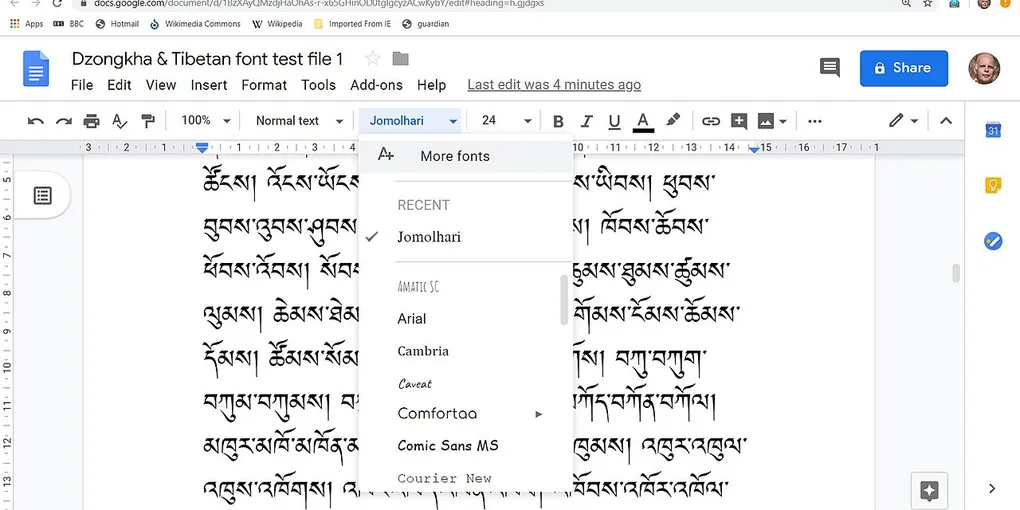
How to Use Google Docs: 10 Steps to Write and Share Better Documents
Quick answer
Use Google Docs by creating a document, naming it, drafting with headings, checking the sharing role, and reviewing the finished file before exporting or sharing it. Google saves changes online automatically; enable offline access first if you expect to lose your connection.
Google Docs is an online word processor for creating, formatting and working on documents with other people. The tool is easy to open but surprisingly easy to use badly: a document can become hard to find, awkward to scan or visible to more people than intended.
This ten-step workflow keeps the useful parts in the right order. Start with the file’s purpose, build a readable document, then check collaboration and delivery. The Google Docs Editors Help overview is the source for the basic create, edit and share workflow; the recommendations below add a practical structure around it.
1. Decide what the document is for
Write one sentence before opening a blank page: “This document helps ___ decide, do or understand ___.” That sentence gives you a test for every paragraph and helps you choose between a quick note, a shared project document, a form or a spreadsheet.
For example, a meeting brief needs a decision, context and action list. A personal reference note needs headings and retrieval-friendly wording. A document that will become a PDF needs stable page structure and a final visual check. If the work is really rows of numbers, use a spreadsheet instead of forcing a table-heavy document.
Keep sensitive information out of a shared draft unless the people and storage location are appropriate. A Google Doc is a collaboration space, not automatically a private notebook.
2. Create the document and choose a useful name
On a computer, open docs.google.com and choose Blank under “Start a new document.” Google also documents the direct creation address docs.google.com/create. On a phone or tablet, use the Google Docs app; the controls can be arranged differently, but the same create-and-edit idea applies.
Rename the file immediately. Use a name that answers what, who or when, such as 2026-09 Client project brief — draft or Apartment inventory — room checklist. Avoid names like New document and Final final 2; they make search and version review harder.
3. Set the document’s working boundaries
Add a short header near the top with the owner, status, last-reviewed date and intended audience. This tells collaborators whether they should edit, comment or treat the file as a finished reference. For a team draft, also agree where decisions go and who resolves comments.
4. Draft the substance before polishing it
Start with the answer, recommendation or decision. Then add the minimum context needed to trust and use it. A dependable first draft often follows this shape:
- What this is and what it is not
- The main answer or decision
- Evidence, instructions or options
- Open questions and owners
- The next action and its date
Do not spend ten minutes choosing fonts before you know whether the document says anything useful. Use short paragraphs and one idea per paragraph. When a paragraph contains several actions, turn them into a list so a reader can scan them.
If you are importing a Word file or another format, read the result instead of assuming the conversion is perfect. Google’s file guidance explains that Docs files can be created, viewed, edited, shared and downloaded, but the content still needs a human check after import.
5. Use headings to make the document navigable
Select the document title and apply the Title style. Use Heading 1 for major sections and Heading 2 for subsections. Do not make ordinary body text bold and large as a substitute for a heading; real heading styles create structure that the outline and table of contents can use.
Google’s heading and table-of-contents guidance explains that a table of contents links to document headings or the title. For a long report, place one near the top and refresh it after major structural changes.
A good heading says what the reader will find: “Choose the sharing role” is more useful than “Important information.” Keep heading levels in order. If a section is not important enough to deserve a heading, it may be a paragraph or list instead.
6. Add only the formatting that improves use
Use bold for a key term, a label or a decision—not for whole paragraphs. Use numbered lists when order matters and bullets when order does not. Add a table when readers need to compare a small number of consistent fields, such as owner, deadline and status.
Check links as you add them. Replace vague link text such as “click here” with words that describe the destination. If the document is instructions, include the expected result after an important step so another person can tell whether it worked.
For a document intended for presentation or printing, use File → Page setup to choose the appropriate page format, margins and orientation. For a continuously scrolling working note, pageless format may be more comfortable, but confirm the layout before exporting. A document that will become a PDF deserves the same final inspection as any other PDF workflow.
7. Collaborate with comments and suggestions
Do not rewrite someone else’s sentence silently when the change needs discussion. Add a comment for a question, concern or assigned follow-up. Google Docs also supports comments, action items and emoji reactions through its collaboration tools; see the official comments guidance for the current controls.
Use a comment when the underlying text should stay visible while people discuss it. Use suggesting mode when you want a proposed wording change that another person can accept or reject. Keep comments specific: “Can we confirm this date with the supplier?” is actionable; “This feels wrong” is not.
Before sharing, remove resolved comments that do not help the final reader. Keep unresolved decisions visible until an owner has answered them, then make the document’s status match its actual state.
8. Share the lowest permission that works
Select Share and decide whether each recipient should be a Viewer, Commenter or Editor. Google’s sharing documentation describes these roles and warns that access applied to a folder is inherited by the files inside it.
Use named people for private or work-in-progress documents. Give a Viewer read access, a Commenter permission to discuss the content, and an Editor only when that person needs to change the document or manage the work. If a folder already grants broader access, fix the folder or move the file to an appropriate location rather than assuming a file-level setting can make it more private.
Before sending the link, open the share dialog again and check the audience, role and general-access setting. This two-minute check prevents a draft from quietly becoming a public or organization-wide document.
9. Prepare for weak or missing internet
Google says you can create, view and edit Docs offline after setting up offline access. On a computer, the official offline-access instructions require you to prepare while connected, use Chrome or Edge, avoid private browsing and install the Google Docs Offline extension.
Turn offline access on before a flight, trip or unreliable connection—not after the network disappears. Open the files you expect to need and confirm they are available. On mobile, use the Docs or Drive app’s offline option and prepare the specific documents in advance.
Offline work is not a backup strategy. For important material, keep an intentional export or other copy as appropriate. If you need to manage a wider collection of files, the Google Drive organization guide covers naming, folders, sharing and recovery checks.
10. Review, export and close the loop
Read the document once as its intended reader. Check the title, headings, dates, names, links, lists, permissions and unresolved comments. If it will be printed or sent as a PDF, inspect page breaks, clipped images, tables and the first and last page. Google’s file guidance covers downloading and exporting files; choose the format that matches the recipient’s next step.
For a collaborative document, use Last edit to see recent changes. Google’s version-history guidance says that browsing earlier versions requires edit permission. Name a meaningful version before a major handoff, approval or publication so the milestone is easier to identify later.
Use Docs as a workflow: name the file, structure it, share deliberately, prepare offline access and review the format your reader will receive.
Hero image: Christopher J. Fynn, CC BY-SA 4.0, via Wikimedia Commons.
Sources
- Google Docs Editors Help: How to use Google Docs — Computer
- Google Docs Editors Help: Create, view, or download a file
- Google Docs Editors Help: Share files from Google Drive
- Google Docs Editors Help: Work on Docs, Sheets and Slides offline
- Google Docs Editors Help: Find what's changed in a file
- Google Docs Editors Help: Add a title, heading, or table of contents
- Google Docs Editors Help: Use comments, action items and emoji reactions
Frequently Asked Questions
How do beginners use Google Docs?
Open docs.google.com, create a blank document, give it a useful name, write with headings, and use Share to choose whether other people can view, comment on, or edit it. Finish by checking the permissions and exporting a copy if you need a PDF or Word file.
Does Google Docs save automatically?
When you are online, Google automatically saves changes as you type, so there is no separate save button. If you need to work without internet, set up offline access while connected and verify that the document is available before going offline.
How do I share a Google Doc safely?
Share with named people when possible and give each person the lowest role they need: Viewer, Commenter or Editor. Check whether a folder is already granting inherited access, and avoid broad link sharing for private documents.
Can I use Google Docs offline?
Yes, after setting up offline access while connected. On a computer, Google says to use Chrome or Edge, avoid private browsing, install the Google Docs Offline extension and make the needed files available before the connection disappears.

.jpg)