Introduction
We live in a multi-device world. Accessing the same online services reliably across phones, tablets, laptops, and smart TVs can be surprisingly tricky due to differing interfaces, account quirks, and device limitations. This guide collects practical steps, tips, and troubleshooting advice so you can access the services you rely on from any modern device.
This guide covers account setup, cross-device syncing, app vs. web tradeoffs, secure authentication, and tips for constrained devices like smart TVs or older phones.
- Accounts and identity: the single source of truth
A reliable cross-device experience starts with consistent account management. For most users, a single primary email address (Gmail or similar) is the identity anchor for multiple services. Recommendations:
- Use a single primary email for important accounts and add recovery options.
- Enable two-factor authentication (2FA) for critical services.
- Use a password manager to generate and sync strong passwords across devices.
- App vs. web: when to use which
Apps often provide better performance and tailored UIs, but web apps have advantages like easier account switching and no install required. Consider these factors:
- Install the native app for frequently used services on mobile devices.
- Use the web interface on shared or constrained devices (smart TVs, public kiosks).
- For privacy or testing, use a browser’s private mode.
- Email (Gmail) across devices
Gmail tips:
- Add your account to the native mail app on phones and tablets for push notifications.
- Consider using labels and filters to organize messages across devices.
- For multiple accounts, configure quick account switching in the Gmail app instead of logging out.
For a device-by-device walkthrough, see our guide to accessing Gmail on every device.
Common issues and fixes
- Problem: Emails not syncing — ensure background sync is enabled in the mobile OS and that battery optimizations aren’t blocking sync.
- Problem: Stuck on two-step verification — keep backup codes or an alternative 2FA method accessible.
- Shopping (Amazon)
Amazon availability and UI differ by device. Key tips:
- Use the Amazon app for mobile purchases and the website for detailed account management.
- Save payment methods and delivery addresses in your account to speed up checkout across devices.
- Enable 2FA for account security; consider using Amazon’s device recognition features to reduce friction on trusted devices.
For a step-by-step walkthrough of shopping and account access from any device, see how to access Amazon on every device.
- Video (YouTube) everywhere
YouTube experiences vary: mobile apps support casting and background play (with subscriptions), while smart TVs run dedicated apps.
- On smart TVs, use the YouTube app or cast from your phone for easier searching.
- Use playlists and library sync to keep favorites accessible across devices.
Need more detail? Our full guide covers accessing YouTube on phones, TVs, and everything in between.
- Translation and quick utilities
Tools like Google Translate or DeepL are available as web and mobile apps. Use the mobile app for camera-based translation; use the web for full-document translation on desktops.
- Smart TVs and constrained devices
Smart TV limitations:
- Input is the most common friction — search is harder with remote controls.
- Apps may be older versions and lack features.
Workarounds:
- Use mobile apps that support casting or remote control pairing.
- Use a streaming stick or small media PC for a full-browser experience.
- Syncing media and subscriptions
Keep subscriptions and libraries accessible:
- Link accounts (e.g., YouTube Premium across devices) when possible.
- For local media, consider a NAS or streaming server (Plex, Jellyfin) to serve content to all devices.
- Privacy and security across devices
Best practices:
- Use device-level passcodes and biometric locks.
- Keep OS and apps updated.
- Use VPN on untrusted networks.
- Troubleshooting common cross-device issues
Problem: Unable to sign in on a smart TV
- Ensure you have the correct account and password; use the TV’s code-based linking flow (enter code on a desktop browser) if available.
Problem: App shows different content than web
- Clear cache and sign out then sign back in. Confirm that account settings (region, language) match across devices.
- Accessibility and alternative inputs
Accessibility matters. Use voice search, screen readers, and larger fonts when devices provide them. Many services support accessibility features across their apps and web versions.
- Advanced tips for power users
- Use progressive web apps (PWAs) on desktop for a near-native experience without installing large apps.
- Use SSO (single sign-on) options where available for enterprise or family setups.
- Checklist for creating a frictionless cross-device experience
- Centralize account management with a primary email and password manager.
- Enable 2FA and store backup codes.
- Install native apps on mobile and use web for constrained devices.
- Use casting or remote-control pairing for TVs.
- Consider a media server for local content.
Conclusion
Accessing everyday services across multiple devices should be seamless, but it requires intentional account setup and a few device-specific tweaks. With the approaches above you can make the same services feel familiar and reliable whether you use a phone, tablet, laptop, or TV.
Expanded guidance, device-specific walkthroughs, and practical recipes
This section dives deeper with device-by-device steps, detailed examples, and troubleshooting recipes to help you reach a consistent experience across a variety of hardware and software ecosystems.
Device categories and general strategies
- Smartphones (iOS/Android): favor native apps for push notifications and background sync; keep OS updated; use system-level password managers and biometrics for quick sign-in.
- Tablets: treat as large phones — install the native apps and enable multi-window where useful for multitasking.
- Laptops/desktops: use full-featured web interfaces for account management; add PWAs where supported for app-like behavior.
- Smart TVs and streaming devices: rely on dedicated apps, casting, or paired control flows; prefer code/linking flows when available to avoid remote typing.
Detailed walkthrough: Gmail and unified inbox setup
- Primary account strategy:
- Choose a primary email address for all major services or set forwarding rules to centralize important mail.
- Mobile setup:
- Add the account to the Gmail app (or native mail app) and configure push notifications.
- Use labels and filters to organize incoming mail.
- Desktop setup:
- Use IMAP in your desktop mail client; match folder/label behavior with your mobile setup for consistent organization.
Pro tip: For family accounts, consider delegated access or Google Workspace for shared management without sharing credentials.
Deep dive: Amazon — device-friendly tips
Account and payment setup
- Save payment methods to speed up checkout across devices.
- Set up one-click or fast-pay options on trusted devices.
Prime and device entitlements
- Prime benefits (video, shipping) often show differently across devices — ensure your account region matches your device region.
Troubleshooting example: Failed checkout on mobile
Symptoms: Payment screen fails or app crashes. Steps:
- Clear app cache, restart app.
- Confirm saved card and billing address.
- Try web checkout on desktop and compare error messages.
Multimedia: YouTube best practices per device
Search and discovery
- On phones, use voice search to avoid typing long queries.
- On TVs, create playlists from the mobile app and cast to the TV.
Offline and downloads
- Use offline downloads on mobile for long trips; manage storage in YouTube settings.
Smart TV pairing and casting
Many smart TV apps support a quick-pairing flow using a numeric code. Workflow:
- Open YouTube on TV, choose Sign in.
- On a desktop or phone, go to youtube.com/activate, enter code, and confirm.
This avoids typing long emails on a TV remote.
Translation apps: workflows for travelers
Use cases: quick camera-based translation, offline phrasebooks, or full-document translation.
- Camera translate: use the mobile app while pointing at signs or menus.
- Offline packs: download language packs for travel without data.
PWAs and browser tips
Progressive Web Apps offer a practical middle ground for cross-device functionality. Benefits:
- Installable on desktop and mobile with a smaller footprint than native apps.
- Use service workers for offline capability and push notifications.
How to create a user-friendly PWA experience:
- Ensure the site has a valid HTTPS certificate.
- Add a web app manifest and icons for multiple resolutions.
- Register a service worker that caches critical assets and offers offline fallbacks.
Security and SSO in depth
Two-Factor Authentication (2FA)
- Use an authenticator app (TOTP) or hardware keys (FIDO2/WebAuthn) for stronger security.
- Backup codes: store them securely in a password manager.
Single Sign-On (SSO)
- Useful for organizations: SSO reduces password reuse and centralizes authentication policies.
- For families, consider a shared family account with delegated profiles rather than shared credentials.
Parental controls and family sharing
Services like Google, Amazon, and YouTube provide family or parental controls. Key steps:
- Set up family manager account and add family members.
- Configure content filters and purchase approvals for child accounts.
Accessibility deep dive
Make devices usable for all users by enabling accessibility features:
- Screen readers and text-to-speech
- Closed captions and larger fonts
- Voice control and dictation
A 15-minute accessibility setup that follows you between devices
Accessibility is easier to maintain when you configure a small baseline on each device instead of waiting until a service becomes difficult to use. Start on the phone you use most, then repeat the same checks on a tablet, computer, and TV:
- Make text and controls comfortable. Increase text or display size until menus are readable without leaning toward the screen. On Android, the official accessibility overview also includes magnification, contrast, color correction, and Select to Speak; on iPhone, add the features you use most to Control Center or the Accessibility Shortcut.
- Choose a non-touch route. Turn on TalkBack or VoiceOver if spoken navigation helps, or enable Voice Access, Siri, or Voice Control when speech is easier than tapping. Keep a keyboard, switch, or remote-control route available as a backup.
- Make audio and video understandable. Turn on captions for video and check that the service remembers your caption preference. For supported content, audio description can describe important on-screen visuals; availability varies by device, video, and provider.
- Test one real task. Open the email, shopping, or video service you use most. Search for an item, open a result, change a setting, and return to the home screen using only the chosen input method. This catches unlabeled buttons, tiny touch targets, and sign-in screens that are hard to operate.
- Add a recovery shortcut. Keep the accessibility toggle easy to reach so another household member can restore it after an update or accidental change. Apple documents a triple-click Accessibility Shortcut; Android groups these options under Settings > Accessibility, although names can vary by manufacturer.
- Copy the baseline to the next device. Write down the settings that worked—text size, captions, screen reader, voice control, and preferred input—then use that short list when setting up the next screen. Do not assume that an app or TV supports every feature supported by the phone.
Apple’s iPhone accessibility shortcut guidance documents quick toggles through the side or Home button, Control Center, Siri, and Vocal Shortcuts. Google’s Android accessibility overview covers TalkBack, display changes, Voice Access, Switch Access, captions, audio description, and other device-level tools. These pages are useful starting points, but the exact menu labels can differ by operating-system version and manufacturer.
Advanced troubleshooting recipes
Issue: Device cannot sign into a service after a password change
Steps:
- Sign out on all devices.
- Sign in on a trusted device (desktop), confirm account settings.
- Re-add accounts to mobile devices.
Issue: Service works on mobile but not on smart TV
Steps:
- Check app version and update on the TV.
- Use code-based linking (youtube.com/activate) to sign in without typing.
- If app is obsolete, consider using an HDMI casting device or a mini-PC.
Power-users: automation and remote control hacks
Use scripts and tools to simplify multi-device workflows. Examples:
- Automate playlist transfers between accounts using YouTube APIs and small scripts.
- Use a local media server (Jellyfin/Plex) and expose friendly UIs on all devices.
Example script idea: export YouTube playlist to a text file and import into another account (using OAuth and YouTube Data API).
Privacy considerations and ad personalization
To minimize cross-device ad tracking:
- Use privacy-respecting browsers (Firefox, Brave) with tracking protection.
- Turn off ad personalization in account settings where available.
- Use containerized browsing profiles for separated tasks (work vs personal).
Checklist and next steps
- Centralize accounts and enable 2FA.
- Install native apps on mobile devices and use web/PWAs for constrained devices.
- Use casting, code-based linking, or remote pairing for TVs.
- Consider a media server for local content sharing.
- Regularly audit devices and app permissions.
Final notes
Making services reliably accessible across devices is part technical setup and part habit: consistent account management, sensible security defaults, and small device-specific optimizations pay large dividends in day-to-day convenience.
Appendix: Practical recipes and scripts
- Quick Gmail filter recipe (web)
- Open Gmail settings → Filters and Blocked Addresses → Create filter.
- Example: filter by
from:(newsletter@example.com)and apply labelNewsletters+ skip inbox.
- Exporting and importing bookmarks between browsers
- On source browser: Bookmarks → Export bookmarks (HTML).
- On target browser: Bookmarks → Import bookmarks → choose HTML file.
- PWA manifest example
{
  "name": "My Service",
  "short_name": "Service",
  "start_url": "/",
  "display": "standalone",
  "background_color": "#ffffff",
  "theme_color": "#0a84ff",
  "icons": [
    {"src":"/icons/icon-192.png","sizes":"192x192","type":"image/png"},
    {"src":"/icons/icon-512.png","sizes":"512x512","type":"image/png"}
  ]
}- Service worker caching skeleton
self.addEventListener('install', event => {
  event.waitUntil(caches.open('static-v1').then(cache => cache.addAll(['/','/index.html','/styles.css'])));
});

self.addEventListener('fetch', event => {
  event.respondWith(caches.match(event.request).then(r => r || fetch(event.request)));
});
Longer troubleshooting: account recovery and 2FA edge cases
If you lose access to your primary 2FA method (phone lost, authenticator reset), recovery steps typically include:
- Use backup codes stored in your password manager.
- Try alternative second factors (SMS, backup phone, security key).
- Contact service support with account proof (recent invoices, account creation details).
Enterprise considerations
For organizations, device access is often managed centrally via SSO (SAML/OAuth/OIDC). Admins should:
- Enforce MFA and conditional access policies.
- Provide device enrollment tools (MDM) to manage corporate devices.
- Educate users on safe practices for personal devices used for work.
Parental control templates
Example: basic YouTube parental settings
- Create a supervised account for the child in Google Family Link.
- On the child’s device, sign in with the supervised account and enable content restrictions in YouTube settings.
Accessibility toolkit
For developers and power users building cross-device experiences, provide:
- Large text and high-contrast themes
- Keyboard and remote-friendly navigation patterns
- ARIA roles and semantic HTML for screen readers
Closing checklist
- Audit accounts and enable 2FA.
- Install core apps and enable sync.
- Configure TV linking or casting workflows.
- Set up a media server if you need local content distribution.
- Document recovery steps and store backup codes in a password manager.
Further reading and tools
- Password managers: Bitwarden, 1Password, LastPass
- Media servers: Plex, Jellyfin
- Automation: IFTTT, Zapier, Home Assistant
Practical setup walkthrough: password manager and 2FA migration
- Choose a password manager (e.g., Bitwarden) and create a strong master password.
- Export passwords from browser/other managers if supported (use encrypted export where possible). Import into the new vault and review entries.
- Enable the password manager on all devices and configure autofill on mobile and desktop browsers.
- Migrate two-factor tokens: use the password manager’s TOTP feature or transfer TOTP entries manually. For sites that support multiple 2FA tokens, add the new token before removing the old one.
Scripted playlist export/import (YouTube API sketch)
For power users migrating playlists between accounts, the YouTube Data API allows programmatic export and import. High-level steps:
- Obtain OAuth credentials for both source and destination accounts.
- Use the
playlists.listandplaylistItems.listmethods to enumerate the source playlist. - Create a new playlist on the destination account and insert items with
playlistItems.insert.
This requires careful handling of quotas and OAuth flows; sample libraries exist in Python, Node.js, and other languages.
Advanced PWA tips and cross-device syncing
PWAs can be combined with cloud sync for user data. Strategies:
- Use local storage + periodic background sync to push user state to a cloud endpoint.
- Provide an account-based sync endpoint so user settings follow them across devices.
Enterprise device policies and MDM
If you manage many devices, use Mobile Device Management (MDM) solutions to enforce policies, push trusted apps, and manage access to resources without needing users to configure devices manually.
Final checklist (expanded)
- Centralize account recovery information and backup codes in a secure password manager.
- Configure app-based authentication and hardware keys for critical accounts.
- Set up family safety features and content filters where needed.
- Document the steps to add a new device to each core service (Gmail, Amazon, YouTube).
Closing thoughts
Consistency and preparation are what make cross-device access reliable: invest a small amount of effort in account hygiene, backups, and a few automation scripts, and you’ll avoid the most common friction points.
Extended case study: family living room setup
Problem: A family of four with mixed device ownership (two adults with phones/laptops, two children with tablets) wanted a simple, safe way to let everyone watch videos, access reading material, and control smart lights without password-sharing.
Solution overview:
- Create a family manager account and child accounts via Google Family Link.
- Use a shared media server (Jellyfin) on a small NAS to host local media; install clients on the TV, tablets, and phones.
- Configure YouTube Kids on children’s tablets and restrict content with supervised accounts.
- Set up casting workflows: enable the TV’s casting receiver and teach family members how to cast from mobile apps.
Outcomes:
- Reduced friction: kids can cast videos without signing in, using supervised profiles and parental controls.
- Centralized updates: the family manager pushes account changes without sharing master passwords.
Deep dive: SSO and conditional access for small organizations
For small organizations or teams, adopting SSO (SAML/OAuth/OIDC) provides centralized user provisioning and deprovisioning.
Key components:
- Identity provider (IdP): Azure AD, Okta, or a self-hosted Keycloak instance.
- Service provider (SP): the application or SaaS product that delegates authentication to the IdP.
Best practices:
- Enforce MFA and use conditional access (e.g., require compliant devices for access).
- Automate onboarding: create scripts that enroll devices and provision accounts automatically via MDM APIs.
Accessibility and UI patterns (more detail)
Designers and developers should test across device types with the following checklist:
- Ensure all interactive elements are reachable via keyboard (tab order) and remote control.
- Provide short, accessible labels and ARIA attributes where appropriate.
- Test the site or app with voice control and screen readers across major platforms (VoiceOver, TalkBack).
Additional troubleshooting recipes
Issue: Inconsistent playback quality across devices
Steps:
- Check network bandwidth per device; use per-device QoS (Quality of Service) if available on the router.
- Enable adaptive bitrate streaming (ABR) on server-side where possible (e.g., HLS/DASH for local media).
Issue: Family can’t cast to TV reliably
Steps:
- Ensure all devices and the TV are on the same Wi‑Fi network and not isolated by client isolation.
- Restart the casting receiver app on the TV.
- Use static IP or DHCP reservation for the TV to avoid address changes.
Final checklist (operational)
- Document how to add a new device to each service (step-by-step) and keep it in a shared note.
- Keep a single place for backup codes and recovery info in your password manager.
- Review app permissions monthly and remove unused apps from shared devices.
Closing encouragement
Small upfront investments in account hygiene, a thoughtful family or team setup, and a couple of automation scripts will save hours of frustration later. If you’d like, I can expand any of the example scripts above into ready-to-run code or generate step-by-step checklist files for your repo.
Tiny next step: pick one service (email, streaming, or shopping) to standardize this week and document the steps — small wins compound quickly. Get started today.
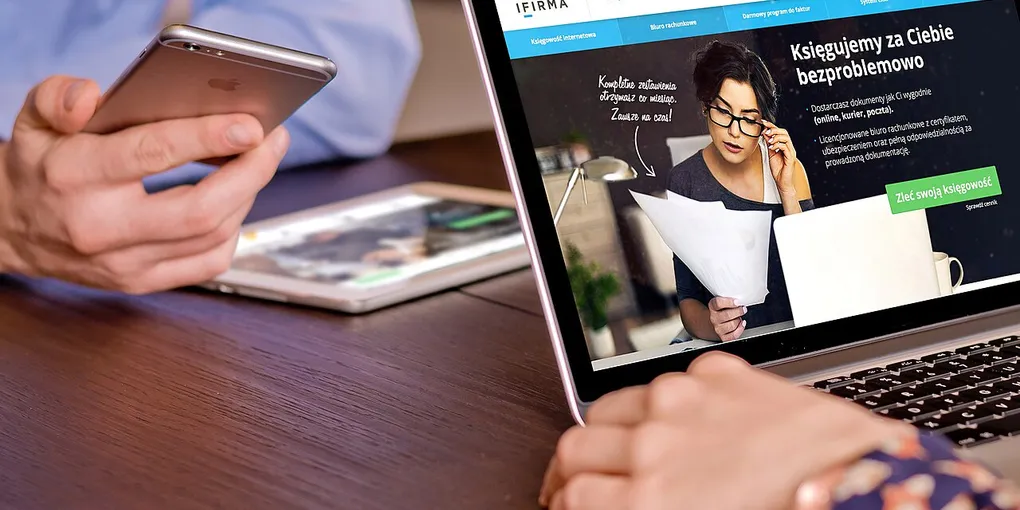
Hero image: William Iven, CC0, via Wikimedia Commons.