The Ultimate Guide to Accessing YouTube on Any Device: Step-by-Step
Quick answer
YouTube is free in any browser at youtube.com, or in the official YouTube app for Android, iOS, smart TVs, and game consoles. Sign in with a Google account to sync your subscriptions, playlists, and watch history across every device.
YouTube is one of the most visited websites in the world, and for good reason. It is where people go to watch tutorials, follow the news, listen to music, learn new skills, and unwind with entertainment. If you want the fastest, simplest way to open YouTube on any device, this guide walks you through the process step by step.
2026 Status: What’s New
This guide was refreshed in August 2026. Access hasn’t changed — youtube.com in any browser and the official apps on phones, TVs, and consoles are still the whole story. What’s new: in August 2026 YouTube announced it is expanding Premium Lite to every market where Premium is available — a cheaper tier with limited ads for viewers who want much of the ad-free experience at a lower price. Everything else below still holds: you can watch without signing in, a Google account syncs subscriptions and history across devices, and full Premium removes ads and unlocks downloads and background playback.
Why YouTube Matters
YouTube is more than a video platform. It is a discovery engine, a learning tool, and a daily destination for millions of people around the world. Because it works across phones, computers, tablets, TVs, and consoles, knowing how to access it correctly saves time and makes the experience smoother.
How to Access YouTube on a Desktop or Laptop
If you are on a Windows, macOS, or Linux computer, the easiest way to get to YouTube is through your browser.
- Open your preferred browser, such as Chrome, Safari, Edge, Firefox, or Brave.
- Click the address bar at the top of the window.
- Type www.youtube.com and press Enter.
- Sign in with your Google account if you want access to subscriptions, playlists, comments, and recommendations.
For quick access later, bookmark the page or create a browser shortcut. In Chrome, you can also install YouTube as a web app for a more app-like experience.
How to Access YouTube on Android
Most Android phones and tablets come with YouTube already installed.
- Open your app drawer or Google folder.
- Tap the YouTube icon.
- Sign in if you are not already connected to your Google account.
If the app is missing, open the Google Play Store, search for YouTube, and install the official app from Google LLC. You can also open your browser and visit m.youtube.com.
How to Access YouTube on iPhone and iPad
On Apple devices, you can use either the app or the browser.
- Open the App Store and search for YouTube.
- Download the official app and sign in with your Google account.
- Alternatively, open Safari and go to youtube.com.
If you want a shortcut on your Home Screen, tap the Share button in Safari and choose Add to Home Screen.
How to Access YouTube on a MacBook or Other Apple Laptop
On a MacBook, Safari is the fastest option, but Chrome also works well.
- Open Safari or Chrome.
- Visit www.youtube.com.
- Bookmark the page or install it as an app if you want one-click access later.
This is especially useful if you use YouTube often for research, playlists, or background music while working.
How to Access YouTube on Smart TVs
YouTube is widely available on modern smart TVs from Samsung, LG, Sony, Roku, and Fire TV.
- Open your TV’s app store.
- Search for YouTube and install the app if needed.
- Launch the app and sign in.
- If prompted, activate the TV using the code shown on screen at youtube.com/activate.
Once connected, you can browse and stream directly on the big screen.
If the TV itself is new, follow the smart TV setup guide first for placement, Wi-Fi, updates, accounts and app checks.
How to Access YouTube on Gaming Consoles
PlayStation and Xbox consoles also support the YouTube app.
- Open the console store or media section.
- Search for YouTube.
- Install the app and launch it.
- Sign in to sync your watch history and subscriptions.
This is a simple way to switch from gaming to streaming without changing devices.
Five-Minute First-Use Check
Once YouTube is open, use this quick check before assuming setup is complete:
- Open the simplest route. On a computer or phone, try the browser first if you are unsure whether the app is installed. On a TV or console, open the official YouTube app from the device’s app store or home screen.
- Play one known video. Search for a channel or video you recognize and start playback. If the video will not load, check Wi-Fi or mobile data before changing account settings.
- Choose the right account mode. You can watch while signed out. Sign in only when you want subscriptions, playlists, recommendations, or watch history to follow you. On a shared TV or console, guest mode or a separate household account helps keep your activity out of someone else’s profile.
- Finish TV activation deliberately. If the TV shows a QR code or activation code, use the phone or computer route shown on the TV, then confirm that the TV displays your intended account. If the code method fails, try signing in with the remote instead; YouTube lists both methods for supported TVs and game consoles.
- Keep a fallback ready. YouTube support varies by device model. If the app is missing or unavailable, use youtube.com in a browser on a computer or phone, update the device software, or check the supported-device list before troubleshooting further.
Quick Troubleshooting Tips
If YouTube is not loading properly, try these quick fixes:
- Check your internet connection.
- Update the app or browser.
- Lower the video quality if playback is buffering.
- Restart your device if the app is crashing.
Final Thoughts
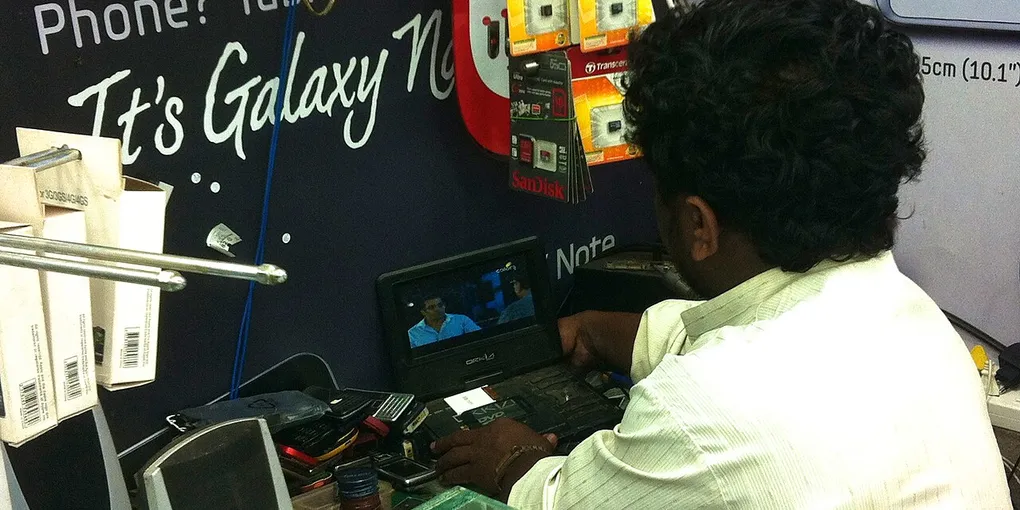
YouTube is designed to be accessible almost everywhere, and once you know the fastest path on each device, getting to your favorite content becomes effortless. Whether you prefer a browser, a mobile app, or a TV interface, the steps above will help you open YouTube quickly and keep watching without friction. Hero image: Subhashish Panigrahi, CC BY-SA 3.0, via Wikimedia Commons.
Frequently Asked Questions
Is YouTube free to use?
Yes. YouTube is free in any browser at youtube.com and in the official app for Android, iOS, smart TVs, and game consoles. YouTube Premium is optional — it removes ads and adds offline downloads and background playback.
Do I need a Google account to watch YouTube?
No, you can watch without one. But signing in with a Google account syncs your subscriptions, playlists, watch history, and recommendations across every device.
How do I get YouTube on my smart TV?
Open your TV's app store (Samsung, LG, Sony, Roku, Fire TV), search for YouTube, and install the official app. Sign in directly, or activate the TV by entering the code shown on screen at youtube.com/activate.
Can I watch YouTube on my phone without installing the app?
Yes. Open m.youtube.com in your Android browser, or youtube.com in Safari or Chrome on an iPhone. On iPhone, tap the Share button and choose Add to Home Screen for a quick shortcut.