How to Time Block: 9 Steps to Take Control of Your Day
Quick answer
Time blocking means giving every hour a job: you plan your day in calendar blocks instead of an open-ended to-do list. Start with the fixed stuff (sleep, meals, meetings), add 1–3 deep-work blocks at your peak hours, and never fill more than about 75% of your day — the rest is buffer.
A to-do list tells you what to do. It does not tell you when. So the list grows, the day fills up with other people’s priorities, and the important task quietly slides onto tomorrow — again.
Time blocking closes that gap. Instead of a list, you give every hour a job: a calendar where your day is divided into blocks, each with one clear task. The method has been written about for decades, it is free, and it works without a single app — though the right calendar app makes it much smoother.
The honest headline first: time blocking works because the calendar lies less than a to-do list. Meetings are real, deadlines are real, and a task that has been scheduled on a calendar behaves like a commitment instead of a suggestion.
1. Put the fixed stuff in first
Before you plan any work, block the things you cannot move: sleep, meals, exercise, meetings, school runs. These are your anchor blocks and they are the skeleton of the day — everything else has to fit around them. (If your mornings are chaotic, a proper morning routine makes the first anchor block nearly automatic.)
Most people find that the day has fewer usable hours than they thought. That is the point. Finding out now is much cheaper than planning thirty minutes of work on top of a packed afternoon.
2. Pick a block length for the task
Different tasks deserve different block sizes:
| Block size | Best for |
|---|---|
| 25 min | Email, quick admin, small tasks — the classic Pomodoro |
| 50 min | Writing, study, coding — with a 10-min break |
| 90 min | Long, focused work: reports, planning, serious reading |
| 15–20 min | Errand-style tasks you can batch (phone calls, invoices) |
Rules of thumb: anything over 30 minutes gets its own block; anything under 15 minutes goes into a batching block with other small jobs. If you keep interrupting a block to peek at your phone, the block is too long.
3. Schedule your blocks at the right time of day
Your energy is not flat. For most people the sharpest 60–90 minutes happen between an hour and three hours after waking — but track your own pattern for a week: when do you get the most writing done, when do you zone out in meetings?
Block your hardest task in your peak window. Save email, admin and calls for the dip in the early afternoon, and put low-effort maintenance tasks (filing, planning the next day) in the late afternoon. A home office that works helps more than any productivity app — the desk, the chair and the screen height decide how easy deep work is.
4. Never fill more than 75% of the day
This is the rule that saves the method. Tasks almost always take longer than you estimate, and meetings have a way of spilling over. If you schedule 100% of the day, one surprise breaks everything; if you schedule 60–75%, a surprise just eats the buffer.
A realistic plan for an 8-hour workday is 5–6 hours of blocked work. The rest is air — and it is the air that makes the plan survivable.
5. Build a weekly template instead of a fresh plan every day
The fastest way to keep time blocking going is to stop planning from scratch: design a typical Monday, Wednesday and Friday, and let them repeat. Fixed habits — morning routine, lunch, workout, email window — become recurring calendar blocks, and each week you only move the moving parts.
The more of the week is automatic, the less willpower the method needs.
6. Make it practical in Google Calendar or Outlook
In Google Calendar: set a default duration (Settings → Event settings → Default event length), press k to jump to the next block, and use keyboard shortcuts to create events fast. Give work blocks a color — deep work one color, admin another — so the week reads like a picture, not text. Use recurring events for anything weekly.
For an app-specific weekly setup, the Google Calendar guide walks through fixed commitments, tasks, sharing and a weekly review.
In Outlook: you can book time against your own calendar just like a meeting, or use the “Book time” button in the new Outlook ribbon. Copy a block and move it with drag-and-drop when plans change. Outlook’s suggested times also work for blocks against your own agenda.
If you prefer pen and paper: draw a grid from 8am to 6pm, write one task per block in pencil, and leave at least one empty block every afternoon. Same method, zero apps.
7. Plan tomorrow the night before
Ten minutes at the end of the day beats 30 minutes at 9am. Pick tomorrow’s 3–5 blocks, look at the calendar for unavoidable commitments, and know tomorrow’s first block before you go to bed — the first block of the day is the one you will actually do. Choosing tomorrow’s tasks tonight is also step 2 of the 10-step productivity guide, which calls it the most important step in the whole system.
8. Close the day with a 2-minute review
At the end of the day, look at what actually happened. Blocks that moved get a tick; blocks that didn’t get rolled forward to the next day. Do not roll your self-worth into it — the review is about the plan, not about you. This is the same honesty that makes the 5-minute start so effective.
9. Know what to do when interruptions hit
Interruptions are the number-one reason people abandon time blocking. The fix is not discipline, it is a rule for what to do when they arrive:
- Write it down, then come back. Keep a “parking lot” note: every distraction goes on the list, and you return to your block within two minutes.
- Batch the inbox. Two or three fixed windows a day for email and messages; outside those windows, the thing you are doing is the thing you are doing.
- A visible break is a real break. Step away for 10 minutes between blocks, and mean it.
And one practical warning: notifications are the attention tax of the modern day. Most of them can wait a few hours without anyone noticing — a week of screen-time discipline makes the difference obvious, and a short digital detox is the quickest way to see it for yourself.
A realistic time-blocking example
Here is a usable weekday template, not a fantasy schedule that leaves no room for life:
| Time | Block | What happens inside it |
|---|---|---|
| 8:30–9:00 | Plan and triage | Check fixed commitments, choose the day’s one must-finish task, and park everything else |
| 9:00–10:15 | Deep work | One defined outcome, such as drafting a proposal; notifications off |
| 10:15–10:30 | Buffer | Walk, reset, or absorb a small overrun |
| 10:30–11:15 | Collaboration | Meetings, calls, and questions that need other people |
| 11:15–12:00 | Admin batch | Email, invoices, and short replies handled together |
| 13:00–14:15 | Second focus block | Continue the priority task or do the next high-value piece |
| 14:15–15:00 | Open buffer | Spillover, errands, or an unexpected request |
| 15:00–16:00 | Meetings and routine work | Lower-energy tasks and commitments |
| 16:00–16:10 | Review | Mark what happened, move unfinished work, and choose tomorrow’s first block |
The exact hours do not matter; the relationships do. Put immovable commitments and breaks on the calendar first, give important work a visible outcome, and keep open space between demanding blocks. Google Calendar supports ordinary events and repeating events, so a template can be reused and adjusted rather than rebuilt each morning (Google’s event help).
When a block goes wrong
Do not immediately make every block longer. At the next review, label the problem: underestimated, interrupted, unclear, or not important enough. For an underestimate, split the remaining work into a smaller next action and reserve a new block. For an interruption, use the buffer or move one low-priority block; do not steal from sleep or every other commitment. For an unclear task, spend five minutes defining its finished result before scheduling it again. After a week, compare planned and actual time and change only the block that repeatedly fails. That small repair loop is what turns “time block examples” into a schedule you can actually keep.
Time blocking vs to-do lists
Keep the list — but use it as an inbox, not as a plan. The to-do list guide shows how to turn commitments into clear next actions; the calendar block is where that work happens. A task without a time slot is just a wish.
The three mistakes that kill time blocking
- Scheduling 100% — no buffer, no flexibility, plan dies on day two.
- Tiny blocks everywhere — a lot of 10-minute blocks is a list with extra steps; give a block a real size and a real job.
- Never reviewing — without the rolling of unfinished blocks, the method quietly writes itself off after a week.
That is the whole system: anchors first, peak hours for hard work, 75% maximum, repeatable template, evening plan, daily review. Start tomorrow with a single deep-work block and go from there.
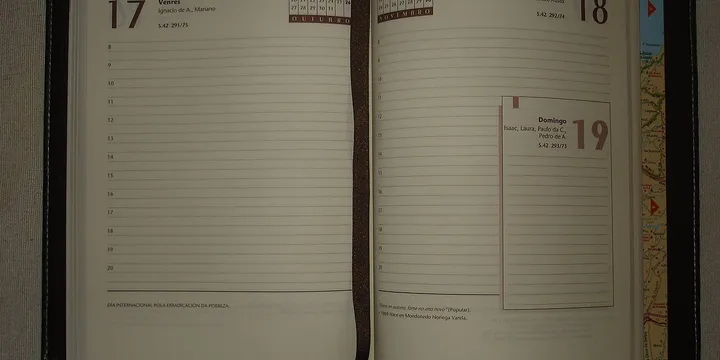
Hero image: Digits.co.uk Images, CC BY 2.0, via Wikimedia Commons.
Frequently Asked Questions
What is the difference between time blocking and timeboxing?
Time blocking is the umbrella method: you reserve calendar blocks for everything you plan to do. Timeboxing is one specific use of it — giving a task a hard time limit (say, 25 minutes for email) and stopping when the box closes. You can time block without timeboxing, but timeboxing works best inside a blocked calendar.
How many hours should I time block per day?
Plan 60–75% of your working hours and leave the rest as buffer. On an 8-hour workday that is roughly 5–6 hours of blocked time. Filling 100% feels productive for a day, but one surprise meeting or slow task collapses the whole plan — the buffer is what makes the method survive real life.
Does time blocking work for ADHD?
Yes, but with shorter blocks and fewer tasks. Instead of a 90-minute deep-work block, plan 25–40 minutes at a time, keep only the current task visible, and expect to re-plan. It also helps to keep a 'parking lot' note for distractions and to use a timer you can see, so the end of a block is a visible red light rather than a vague feeling.
Do you time block Outlook or Google Calendar?
Both, and the method is identical: put fixed commitments in first, then drag blocks for tasks into the free time, and set them to repeat weekly so the template reuses itself. In Google Calendar you can set a default event length and press 'k' to jump between blocks; in Outlook use the 'book time' button or just block appointments against your own calendar.