GitHub Trending This Week: WandEnhancer — A Local WeMod Companion
Quick answer
WandEnhancer is an Apache-2.0-licensed C# tool that patches a selected local Wand installation and adds client-side configuration, layout and theme options, custom renderer scripts, and an optional LAN remote panel. It does not publish official compiled executables, so the documented path is to review the source and build an artifact from your own fork.
WandEnhancer (k1tbyte/Wand-Enhancer) was the fourth repository in GitHub’s daily trending results when checked on September 1, 2026. GitHub’s API listed 23,481 stars, 59,712 forks, and C# as the main language. The project describes itself as an advanced user-experience and interoperability extension for the Wand (WeMod) application.
The repository is attracting attention for two related reasons. It combines a local patcher with a mobile-friendly remote panel, and its latest release candidate, 2.0.0.0-rc.1, makes substantial changes to how the tool launches and patches Wand. It is also unusually explicit about what it does not provide: there are no official prebuilt executables and no official YouTube installation tutorials. That warning is central to using this project responsibly.
1. What the project changes
WandEnhancer works on a selected local Wand installation. The README lists local environment configuration, compatibility adjustments for new client versions, client-side layout and theme customization, AI features, and a Remote Web Panel among its improvements.
This is not a replacement Wand client or a hosted service. The patching step changes files on the computer where it runs. The README says the .NET patcher does not contact an update or telemetry service, while Wand itself remains an online application. That distinction matters: a local patcher may not have project telemetry, but the application and any optional panel integrations still have their own network behavior.
The latest release candidate removes the bundled version.dll proxy. Instead, the launcher starts Wand as a child process, applies patches to the Electron processes it creates, and detaches after startup settles. The release notes say this addresses launch problems reported after enhancing in several issues. The release also removes the native helper and its CMake build step from the new path, although the README’s source-build requirements still describe CMake for building the repository as documented.
2. The Remote Web Panel
The Remote Web Panel is the most immediately visible feature for people who want to control Wand from another device. On a local network, the quick-start flow is simple:
- Put the computer and phone on the same Wi-Fi network.
- Hover over WandEnhancer’s Connect button.
- Scan the displayed QR code with the phone camera.
The panel uses plain HTTP on TCP port 3223 and a WebSocket connection. If a router isolates wireless clients, or Windows Firewall blocks inbound traffic, the phone may not reach the panel. The README suggests checking client isolation, allowing the port on the local network, and using a private Windows network profile where appropriate.
There is an important security boundary here. The panel has no pairing code, and anyone who can reach that port can view the panel and control the active trainer. Keep it on a trusted LAN or a VPN such as Tailscale; do not port-forward it or expose it directly to the internet. The README also says the panel protocol does not include the Wand bearer token or installation-path fields, which is useful context but not a reason to ignore the network exposure.
3. Custom JavaScript scripts
WandEnhancer can inject user-selected JavaScript into Wand’s renderer when the Remote Web Panel patch is enabled. You can add existing .js files through the patch dialog or put them in a renderer-scripts/ folder beside the patcher executable.
The scripts run inside Wand’s renderer with DOM access and Node require. They may run more than once during a launch, so the README’s example uses a global flag to make one-time setup idempotent. A small WandEnhancer helper exposes logging and panel-related values. Because these scripts run with the same privileges as the client, add only code you have read and understand. A script that changes a button is still code running inside a desktop application, not a harmless browser bookmarklet.
4. Build your own artifact
The project intentionally does not publish official compiled binaries. Its documented distribution path is to build from your own GitHub fork:
- Fork the repository and sync the fork before building.
- Open the fork’s Actions tab and enable workflows if necessary.
- Run the Build executable workflow on the default branch.
- Wait for the workflow to finish, then download its artifact ZIP.
- Extract it and run
WandEnhancer.exeto apply local modifications.
The README says a complete source build on Windows needs Node.js, pnpm, CMake, MSBuild, Visual Studio 2022 or its build tools, the Desktop development with C++ workload, and .NET Framework 4.8 desktop build tools or targeting pack. The build.cmd script installs the panel dependencies, builds the frontend, compiles the native helper, restores NuGet packages, and builds the WPF solution according to the current documentation.
The fork-and-actions route is safer than searching for a binary because it gives you a visible source revision and workflow run to review. It does not make the result signed: the README notes that an unsigned, uncommon build can trigger Windows Defender or SmartScreen warnings. Read the code, inspect the workflow logs, and keep the artifact tied to a commit you can identify.
5. Who should try it?
WandEnhancer is aimed at Wand users who want local interface customization, compatibility patches, remote control from a phone, or a programmable way to adjust the client. It is also relevant to developers who want to study a desktop Electron/WPF integration with a local bridge, ASAR handling, renderer injection, and a web panel.
It is not a beginner-friendly “download and double-click” utility. The project asks users to build their own executable, understand local patching, protect a LAN service, and avoid untrusted third-party files. If that trade-off is acceptable, start with a small local test and the default workflow before enabling custom scripts or remote access.
If you are interested in other open-source agent and developer tools, the Hermes Agent guide covers a separate local agent workflow, while the OpenClaw guide looks at another open-source automation project.
Bottom line
WandEnhancer is trending because it sits at the intersection of desktop customization, local interoperability, and remote control. The 2.0.0.0 release candidate updates the patching and launcher architecture, adds automatic re-application after Wand updates, and improves reporting when a patch is skipped or fails. The practical way to evaluate it is not to download a random executable: review the repository, build from your own fork, keep the Remote Web Panel on a trusted network, and treat injected scripts as privileged code.
Sources
- GitHub daily trending results
- WandEnhancer repository metadata
- WandEnhancer repository and README
- WandEnhancer README (raw)
- WandEnhancer 2.0.0.0-rc.1 release notes
- WandEnhancer Apache-2.0 license
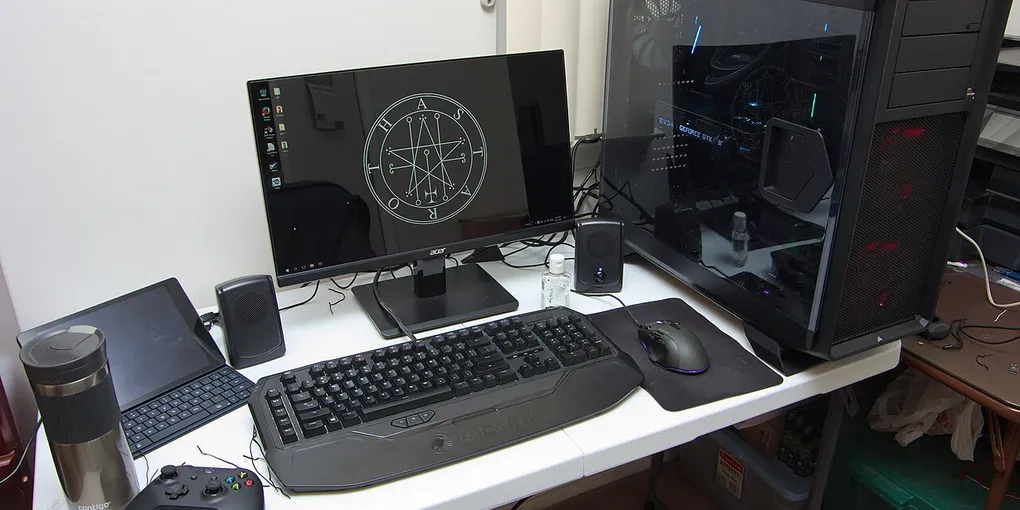
Hero image: Brian Wong, CC BY-SA 2.0, via Wikimedia Commons.
Frequently Asked Questions
What is WandEnhancer?
WandEnhancer is an open-source interoperability and UX extension for the Wand desktop application. It applies local client patches and adds features such as configuration management, client-side customization, custom JavaScript injection, and an optional Remote Web Panel.
Does WandEnhancer include an official executable download?
No. The repository says official GitHub releases contain release notes rather than prebuilt .exe files. Its documented workflow is to fork the repository, run the Build executable GitHub Actions workflow, and download the artifact from your own completed run.
Is WandEnhancer safe to download from a tutorial video?
No third-party download should be treated as trusted. The README warns about fake tutorials and malware in video descriptions. Review the source and build from your own fork instead of downloading an executable from YouTube, a random site, a mirror, or an issue comment.
How does the Remote Web Panel connect?
The panel starts a plain HTTP and WebSocket service on local TCP port 3223. Put the computer and phone on a trusted LAN or VPN, use the displayed QR code, and never expose that port directly to the public internet because the README says there is no pairing code.