Quick answer
The free built-in weather apps — Apple Weather on iPhone/iPad/Mac, Google Weather on Android, Microsoft Weather on Windows — are the fastest way to check conditions, and weather.com or Wunderground work in any browser. For severe-weather alerts, enable critical alerts in the app settings.
As the world’s most frequently consulted daily necessity, weather information shapes how billions plan their day. Whether you need a quick glance at local temperatures, an interactive Doppler radar for storm tracking, or critical severe-weather alerts sent to your lock screen, this master guide explains how to access accurate weather data across every major device and operating system.
2026 Status: What’s New
This guide was refreshed in August 2026. The built-in apps are still the fastest route — Apple Weather on iPhone/iPad/Mac, Google Weather on Android, Microsoft Weather on Windows — and they remain free with no sign-in. Apple Weather picked up new rain- and wind-focused views in the iOS 27 generation (2026), so you can switch between the default forecast and dedicated rain/wind views in the app. Everything else below still holds: weather.com and Wunderground work in any browser, and enabling severe-weather notifications remains the single most useful thing you can do.
A five-minute first-use check
Before relying on a new weather setup for a commute, hike, or storm day, test the complete path once:
- Choose the least complicated route. Start with the built-in app or Windows Widgets. Use a browser when you need a shared link, a second provider, or a device that cannot install the native app.
- Set one clear location. Search for your town or postcode, then compare the result with your actual neighbourhood. On iPhone, Apple says Precise Location improves current-location notifications; permissions and Weather availability vary by country or region. Check Apple’s current notification steps.
- Test one forecast detail. Check the next hour and the daily forecast, not just the temperature. If the app shows radar, air quality, or precipitation, open one of those views so you know where it lives before you need it.
- Configure alerts deliberately. Turn on only the severe-weather or precipitation alerts you will act on, then confirm that the phone is allowed to notify. Google’s daily weather updates are an optional Google Home subscription, and Google notes that features can differ by language, country, or eligible Android device. See Google’s setup.
- Keep a fallback. Bookmark a trusted browser forecast or your national meteorological service. On Windows, Widgets opens with Windows logo key + W, and Microsoft describes its weather widget as a source for current conditions and forecasts; it can still be unavailable or stale if the network or location is wrong. Review Microsoft’s Widgets guide.
If two sources disagree, do not average the numbers blindly. Check that they use the same location, units, forecast time, and alert type; for dangerous weather, follow your national meteorological service or emergency authority.
1. The Infrastructure of Digital Weather Data
Before exploring device-specific configurations, it helps to understand how digital weather information is compiled and distributed to your screen. This framework allows you to choose your data sources wisely, ensuring you receive the highest-quality local updates.
Core Delivery Pathways
National Meteorological Services: Government-funded scientific agencies that run core radar installations, launch weather balloons, and issue official public safety alerts (e.g., the National Weather Service in the US, DMI in Denmark, or the Met Office in the UK).
Private Weather Companies & Aggregators: Commercial organizations that build proprietary forecasting algorithms, high-resolution radar maps, and consumer interfaces by combining public data with private sensor networks (e.g., The Weather Channel, Weather Underground, or AccuWeather).
Operating System Weather Networks: Built-in tech platform frameworks that pull data from premium commercial partners to feed native applications and system-level desktop widgets automatically (e.g., Apple Weather using data from WeatherKit, or Microsoft Weather driven by MSN networks).
Public Safety & Security Warning: Because tracking severe weather conditions (like hurricanes, tornadoes, or blizzards) drives massive search traffic and emotional urgency, malicious entities frequently distribute fraudulent “weather radar” apps or web browser extensions. These fake tools are often designed to steal user location history or serve intrusive pop-up ads. Always stick to official, first-party mobile apps downloaded from verified application stores, and ensure your browser’s address bar displays a secure HTTPS padlock icon.
2. Accessing the Weather from a Desktop Computer or Laptop (Windows & Linux)
For tracking incoming storm fronts on an expansive display, managing travel itineraries across multiple browser tabs, or keeping a permanent local temperature readout visible beside your daily work layout, traditional desktop computers and laptops running Windows or Linux offer an exceptional setup. They provide excellent multi-window multitasking, deep system tray integrations, and complete mouse and keyboard controls.
Method A: The Built-In Microsoft Weather Interface (Windows 11 & 10)
Microsoft builds a dedicated, highly interactive weather module straight into its desktop operating system, allowing you to check current conditions without ever opening a standard web browser.
Open the Widgets Board or Taskbar Icon: Look at the bottom-left corner of your Windows 11 taskbar (or the bottom-right corner on Windows 10). You will see a live text and icon display showing your current local temperature and conditions (e.g., “68°F Sunny” or “20°C Rain”).
Launch the Full Dashboard: Click directly on that live taskbar text block. The interactive Windows Widgets Board will slide open on the left side of your panel.
Expand the Weather Card: Locate the central Weather tile and click on it. The operating system will instantly launch the full-scale Microsoft Weather app.
Explore the Features: The desktop app interface splits into multiple clean navigation panels, including Hourly Forecasts, 10-Day Views, Precipitation Maps, and detailed Air Quality Indexes (AQI).
Pin Secondary Locations: If you are tracking conditions for a corporate office abroad or an upcoming vacation spot, click the Favorites (Star) icon at the top of the interface, type the target city name, and pin it to your quick-access sidebar.
Method B: Web Browser Aggregators (The Universal Solution)
If you prefer checking your forecasts inside a traditional browser tab, using a trusted, ad-light weather portal is a highly efficient choice.
Launch Your Preferred Browser: Open an updated browser instance such as Google Chrome, Mozilla Firefox, Microsoft Edge, Brave, or Opera.
Navigate to a Trusted Domain: Click directly into the top address bar (omnibox), type a verified global domain like https://www.wunderground.com (Weather Underground) or https://weather.com (The Weather Channel), and press Enter.
Set Your Exact Microclimate: Use the prominent search container at the top of the webpage to enter your specific zip code or neighborhood name. This guarantees you view hyper-local tracking data rather than broad regional city averages.
Save to Your Bookmarks Bar: Press Ctrl + D on your keyboard, name the bookmark cleanly (e.g., “Local Weather”), and save it straight to your browser’s persistent Bookmarks Bar for instant, one-click access every morning.
Desktop Performance & Optimization Matrix
To ensure your desktop radar maps scroll smoothly and load instantly without lagging your system memory, cross-reference your computer setup with the following parameters:
Parameter Minimum Requirement Recommended Configuration Browser Version Chromium 105+ / Firefox 100+ Latest stable release with auto-update toggles enabled Hardware Acceleration Optional Enabled in browser settings to leverage GPU processing for real-time radar animations Location Services Enabled at OS level Switched to “Allow Website Access” for automatic local updates
3. Accessing the Weather from an Apple Mac (MacBook Pro, MacBook Air, iMac)
Apple Mac computers running macOS feature an incredibly clean, optimized ecosystem for tracking the elements. Mac users can choose between native desktop widget integrations or the dedicated, full-screen Apple Weather client application.
Method A: The Native macOS Apple Weather Application
Beginning with modern macOS updates, Apple brought its flagship mobile Weather experience straight to the desktop, engineered natively to flow beautifully within the desktop window environment.
Open the Application: Click on the Launchpad icon on your desktop Dock, or call up Spotlight search instantly by pressing Command + Space. Type “Weather” and hit the Return key on your Mac keyboard.
Review the Layout: The application window initializes cleanly, utilizing a multi-column card design. The left panel showcases your active city card list, while the wide right pane displays high-resolution tiles covering the current temperature, UV index, wind speeds, and precipitation chances.
View High-Resolution Interactive Radar: Click on the small Map icon positioned in the lower-left corner of the primary temperature card module. The application will instantly expand into a gorgeous, full-screen interactive weather canvas. Use the right-hand layer toggles to switch between live Precipitation tracks, Temperature variations, and local Air Quality overlays.
Method B: Configuring Persistent Menu Bar & Notification Center Widgets
If you want to view the current temperature constantly while working on code, spreadsheets, or documents without keeping a separate app window open, you can pin the weather straight onto your macOS desktop interface.
Configuring the Notification Center: Click directly on the Date and Time text string in the absolute top-right corner of your macOS menu bar. The Notification Center panel will slide open from the right edge of your screen. Scroll to the base of the panel and click Edit Widgets. Locate the Weather listing, choose your preferred block layout size (Small, Medium, or Large), and drag it directly onto your active widget layout.
Desktop Placement: On modern macOS versions, you can drag that Weather widget block straight off the Notification Center panel and drop it directly onto your desktop wallpaper. The widget will rest permanently on your screen, automatically turning semi-transparent whenever you have another app window open over it to maintain your focus.
4. Accessing the Weather from an iPhone (iOS)
Mobile phone access is the single most common path users take to run fast checkouts on temperatures, view precipitation times as they walk out the door, and receive immediate life-safety storm notifications. Apple’s iOS platform offers an incredibly responsive, built-in application.
Method A: The Pre-Installed Apple Weather App (The Core Standard)
Every iPhone arrives with a built-in Weather application driven by Apple’s high-speed data architecture.
Locate the native Weather application icon on your iPhone home screen (the icon displays a minimalist sun peeking out from behind a blue cloud). Tap to launch it.
Allow Location Permissions: Upon your first launch, the operating system will ask for location access. For the best experience, select “Allow While Using App” and choose to share your Precise Location. This guarantees that if you travel to another city or state, your phone updates its local conditions automatically.
Analyze the Weather Tiles: Scroll down vertically to view specialized tracking blocks, including Hourly Wind Maps, Moon Phase schedules, Humidity indexes, and a rolling 10-Day forecast timeline.
Activate Next-Hour Precipitation Alerts: Tap the main menu list icon in the bottom-right corner of the app screen. Tap the three-dot settings icon at the top right and select Notifications. Toggle the switches to the active position for My Location. Now, your iPhone will send a precise push alert to your lock screen the exact minute rain or snow is about to start or stop in your immediate neighborhood.
Method B: Setting Up iOS Lock Screen and Home Screen Widgets
To make your access completely seamless, you can check the weather instantly without even unlocking your phone screen.
Adding a Home Screen Widget: Long-press an empty space on your iPhone home screen until your application icons begin to jiggle. Tap the + (Plus) symbol in the upper-left corner of the screen panel. Scroll down the app library list to find Weather. Swipe horizontally to select your preferred layout block (such as the standard compact temperature block or the wider hourly timeline card) and tap Add Widget. Drop it into place and tap Done.
Adding a Lock Screen Widget: Lock your iPhone, then wake the screen without unlocking it completely. Long-press on your lock screen wallpaper until the Customize menu banner appears at the base. Tap Customize, select Lock Screen, and tap the Add Widgets empty box directly underneath the main digital clock display. Select the Weather module to place a permanent, glanceable condition icon right alongside your date display.
5. Accessing the Weather from an iPad (iPadOS)
The expansive display space of Apple’s iPad provides an incredible canvas for analyzing weather systems, making it feel like having a professional meteorological dashboard right on your coffee table or desk workspace.
Method A: The Dedicated iPadOS App Layer
The iPad edition of the flagship Weather application is uniquely engineered to take complete advantage of the tablet’s extra panel real estate.
Open the pre-installed Weather application bundle on your iPad.
The interface loads natively using a wide, multi-pane layout grid. The left-hand sidebar displays your complete, active list of tracked global cities, the center panel features the primary 24-hour hourly conditions timeline, and the surrounding layout blocks show high-resolution data graphics.
Hardware Keyboard Shortcuts: If your iPad is docked into an Apple Magic Keyboard, Smart Keyboard Folio, or paired with an external Bluetooth keyboard, you can navigate your city lists effortlessly using your keyboard’s arrow keys.
Method B: Split View Radar Tracking for Professionals
For researchers, outdoor event organizers, and daily commuters, tracking weather radars alongside your work schedules is simple when using iPadOS multitasking frameworks.
Launch Weather on your iPad panel.
Open the interactive radar map by tapping the map tile icon.
Initialize Split View: Swipe up gently from the base of the screen to reveal the iPadOS app Dock. Long-press your primary calendar, note-taking, or browser application and drag it to the far-right or left edge of the screen.
Release your finger to snap the display into Split View. You can now keep a live, moving radar loop running on one half of your iPad screen while building your schedule, reading emails, or organizing documents on the adjacent half.
6. Accessing the Weather from an Android Smartphone or Tablet
Because Google develops the Android operating system, weather tracking is woven into the core system software. Android provides deeply integrated, system-wide forecast modules that run natively across your entire device layout.
Method A: The Google Weather Hub & Home Screen Widget
On almost all modern, certified Android devices (such as Samsung Galaxy, Google Pixel, OnePlus, Xiaomi, and Motorola), checking the forecast is as simple as interacting with your home screen wallpaper.
Unlock your Android device and view your primary home screen. Most Android layouts feature a pre-configured, clean text block displaying the date and current temperature (known as the “At a Glance” module).
Launch the System App: Tap directly on that small temperature text string or weather icon. Android will instantly slide open its integrated, full-scale Google Weather app.
Navigate the Interface: The application interface showcases a gorgeous, animated backdrop that changes dynamically to match current atmospheric conditions outside (e.g., displaying soft rain animations or clear sunny fields). Scroll vertically to explore detailed Precipitation probabilities, UV tracking metrics, and Hourly wind speeds.
Add a Direct Launcher Shortcut: To place a permanent application icon onto your app drawer for faster access later, tap your profile picture icon in the top-right corner of the Google Weather interface screen and select Add to Home Screen.
Method B: Deploying Alternative Premium Store Apps (Samsung and Pixel Clients)
Depending on your specific phone manufacturer, you can utilize specialized, hyper-localized weather applications tailored directly to your hardware layout.
Launch the native Google Play Store icon on your Android mobile device.
Tap the central search container at the peak of the interface layout, type “The Weather Channel” or “AccuWeather”, and click search.
Verify the developer profile to ensure you are installing the official application, then tap the green Install button. Once configured, open the app. These premium platforms offer excellent Android Quick Settings Tiles, allowing you to swipe down from the top of your phone screen during any task to view a live, compact local radar update instantly.
7. Critical System Troubleshooting & Access FailURES
Even when following the standard steps, network routing glitches, local privacy security filters, or application-level bugs can occasionally cause your weather streams to freeze, display inaccurate locations, or fail to refresh entirely. Review this practical resolution matrix to quickly clear common faults:
Issue 1: Weather App Displays the Wrong Location or Fails to Update Automatically
If you travel to a new city or state and your weather interface continues to display conditions for your home town, your device’s background location permissions are likely blocked.
Resolution for iOS: Navigate to your phone’s main system configuration panel. Go to Settings > Privacy & Security > Location Services. Ensure Location Services is toggled completely on, scroll down to the Weather listing, and change its access parameter to Always. Verify that Precise Location is turned on.
Resolution for Android: Open your main device settings panel. Go to Settings > Apps > Weather (or Google) > Permissions > Location. Shift the setting selection to “Allow all the time” and ensure “Use precise location” is turned on. Restart your device to force a fresh GPS network handshake.
Issue 2: Radar Maps and Animated Tiles Freeze or Fail to Render Layout Elements
This typically points to an overloaded local browser cache, network connectivity drops, or disabled hardware rendering toggles.
Resolution: Clear your active browser state history. On desktop web browsers, use the universal key command Ctrl + Shift + Delete (or Command + Option + E on a Mac) to call up your privacy control center. Set the time range to “All Time,” check the boxes for Cookies and other site data and Cached images and files, then click Clear Data. Re-launch your browser and confirm that Hardware Acceleration is toggled to the active position within your browser’s advanced settings menu to enable smooth radar rendering.
Issue 3: Missing Vital Real-Time Severe Weather Notifications
If a major storm warning or emergency alert occurs in your area, but your smartphone fails to sound a warning chime or display a banner alert:
Resolution: Check your system-level notification tracking overrides. On iOS, go to Settings > Weather > Notifications and ensure Critical Alerts is switched on. Critical Alerts bypass your iPhone’s physical silent switch and any active “Do Not Disturb” focus modes, guaranteeing you hear emergency storm warnings. On Android, go to Settings > Apps > Weather > Notifications and ensure all Emergency and Severe Weather Alerts channels are set to high-priority audio alerts.
8. Comprehensive Cross-Platform Access Matrix
The reference grid below organizes the absolute best entry vectors for utilizing weather tracking workflows across the entire modern consumer technology landscape:
Target Platform Primary Access Portal Alternative Channel Core Operational Advantage Windows Workspace Windows Taskbar Widgets Board Web Browser Hubs (wunderground.com) Keeps a permanent local temperature display visible on your taskbar without opening a browser Apple MacBook / Mac Native macOS Weather App Notification Center Screen Widgets Low battery usage, smooth scrolling, and transparent desktop widget integrations iPhone (iOS) App Store Native App Layer Lock Screen Home Wall Widgets Real-time next-hour precipitation alerts sent straight to your lock screen iPad (iPadOS) iPadOS Multi-Column App Client Desktop Safari Split View Layout Massive display space for analyzing moving Doppler radars and schedules side-by-side Android Smartphone Home Screen “At a Glance” Link Play Store Aggregator Apps Dynamic animated backdrops and easy Quick Settings dropdown tile support Alternative Systems Smart Home Display Systems Smartwatch Screen Complications Hands-free voice-activated forecast checks and glanceable wrist updates
Conclusion
Accessing the weather swiftly and securely across your entire hardware collection simply comes down to choosing the right tool or widget for your specific device layout. For production environments, coordinating travel plans, and managing long-term project timelines, utilizing updated desktop web browsers or configuring clean Notification Center widgets on your computer ensures a highly stable, informative workspace.
When you are on the move, taking advantage of pre-installed home screen widgets, enabling precise location permissions, or turning on high-priority critical alerts ensures that the world’s most powerful Doppler radar networks, local air quality metrics, next-hour rain forecasts, and severe storm warnings are always just a quick glance away. By applying the secure setup workflows, reading layouts, and troubleshooting tips outlined in this master guide, you can maintain a lightning-fast, secure, and completely reliable connection to your environment across your entire device layout.
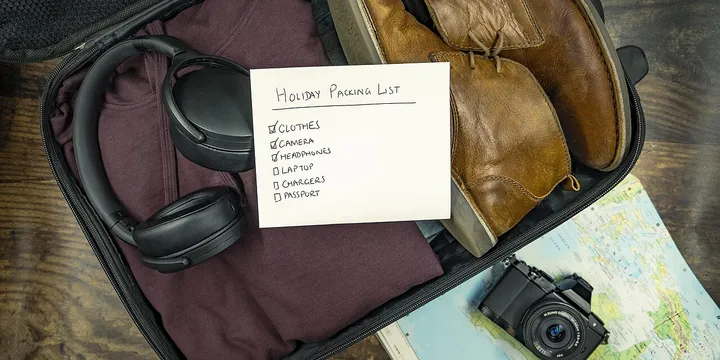
Planning a trip? Pair the forecast with a realistic packing plan — the carry-on packing guide walks through a full week of clothes in one bag. Happy planning! Hero image: The open draft, CC BY-SA 4.0, via Wikimedia Commons.
Frequently Asked Questions
What is the best free weather app?
The built-in options are free and reliable: Apple Weather on iPhone, iPad, and Mac, the Google Weather hub on Android, and Microsoft Weather on Windows. Web portals like weather.com and wunderground.com are free too, and let you set a hyper-local location.
Why does my weather app show the wrong location?
Location permissions are usually blocked. On iPhone, go to Settings > Privacy & Security > Location Services, set Weather to Always, and turn on Precise Location. On Android, go to Settings > Apps > Weather (or Google) > Permissions > Location and choose "Allow all the time".
How do I get severe weather alerts on my phone?
On iPhone, turn on Critical Alerts in Settings > Weather > Notifications — these bypass the silent switch and Do Not Disturb. On Android, open Settings > Apps > Weather > Notifications and set Emergency and Severe Weather Alert channels to high-priority audio alerts.
How do I check the weather on Windows without opening a browser?
Click the live temperature card at the bottom-left of the Windows 11 taskbar (bottom-right on Windows 10) to open the Widgets Board, then click the Weather tile to launch the full Microsoft Weather app with hourly, 10-day, precipitation, and air quality views.